

This article covers enabling single sign-on (SSO) for iplicit login at the environment level. SSO lets users log in to iplicit using the same credentials they already use for their organisation's identity provider, instead of a separate iplicit username and password. This article does not cover linking individual users once SSO is enabled – see 'How to link your account to SSO in iplicit' or 'How to bulk-link users to SSO using the SSO Link Wizard'. It also does not cover multi-factor authentication (MFA); SSO and MFA are separate login options, and SSO doesn't require MFA to also be turned on.
What SSO does in iplicit
Single sign-on (SSO) is a login option that lets users sign in to iplicit through their organisation's identity provider (IdP), rather than typing a separate iplicit username and password. iplicit supports four SSO providers:
- Microsoft Entra ID (previously known as Azure AD)
- OneLogin
- SAML2
An environment can enable more than one SSO provider at the same time.
Enabling an SSO provider
To enable SSO for your iplicit environment:
- Go to Environment defaults
- Find the 'Single sign-on (SSO)' section
- In 'Enabled SSO providers', select the provider or providers you want to use, and move them to the selected box
- Select 'Apply'
Once applied, an 'Enforce login via SSO' option becomes available. Ticking this means users can only log in through SSO – username and password login is switched off entirely for the environment.
The fields that appear next depend on which provider you selected.
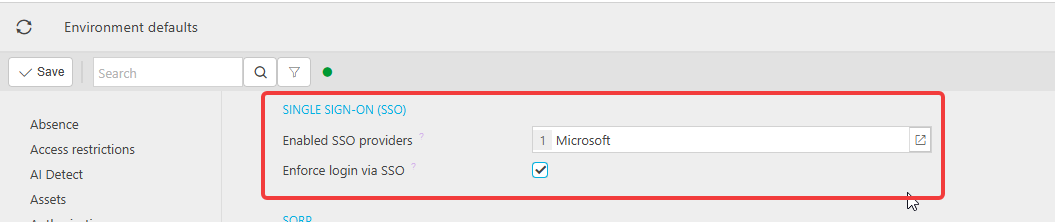

Google and Microsoft (non-Entra) fields
Selecting Google, or Microsoft outside of Entra ID, adds no extra fields beyond 'Enforce login via SSO'. There's nothing further to configure in iplicit for these two providers at environment level. For Google specifically, your Google administrator also needs to permit third-party SSO in the Google Admin Console – see 'How to set up and link Google SSO for iplicit users' for that part of the setup.
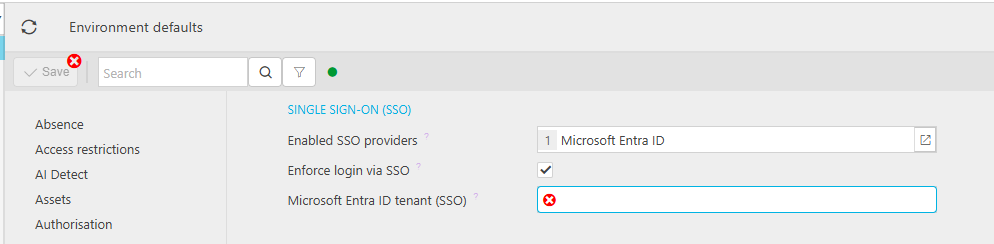
Microsoft Entra ID fields
Selecting Microsoft Entra ID adds one required field:
- 'Microsoft Entra ID Tenant (SSO)' – your organisation's Tenant ID, found in the Microsoft 365 admin portal. Ask your Microsoft 365 administrator for this if you don't already have it
An optional field also appears:
- 'Prompt SSO Login' – when ticked, lets a user choose which Entra account to use at login, useful if someone has more than one Microsoft account

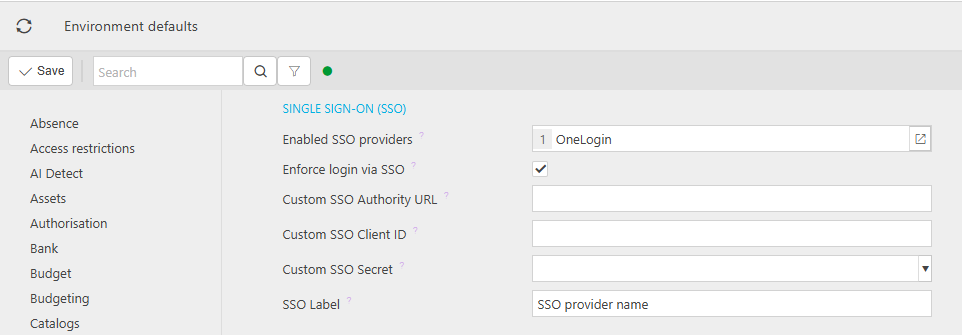
OneLogin fields
Selecting OneLogin adds four fields, all provided by your OneLogin administrator:
- 'Custom SSO Authority URL'
- 'SSO Client ID'
- 'Custom SSO Secret'
- 'SSO label' – the name shown to users on the iplicit login screen

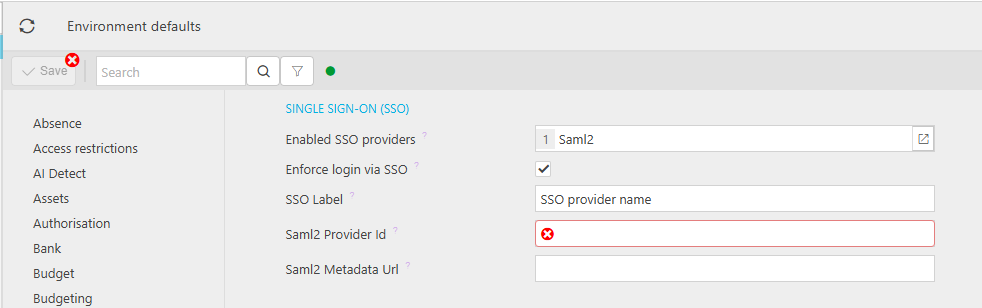
SAML2 fields
Selecting SAML2 adds three fields:
- 'SSO label' – the name shown to users on the iplicit login screen
- 'Saml2 Provider' – your provider's Entity ID, found on your provider's setup page or metadata file
- 'Saml2 Metadata Url' – your provider's metadata URL, left blank if the Entity ID already serves as the metadata URL
Your SAML2 provider will also need iplicit's own details to complete their side of the setup:
- iplicit's Entity ID and metadata URL: login.iplicit.com/Saml2
- iplicit's Assertion Consumer Service (reply) URL: login.iplicit.com/Saml2/Acs
- Required claims: a unique name identifier, the user's full name, and the user's email address

Removing a provider
Removing a provider from 'Enabled SSO providers' hides its fields from view but doesn't delete what was entered. Reselecting the same provider later brings the original values back. Any change still needs 'Save' to take effect.
Enable SSO
Set up single sign-on
SSO provider
Azure AD login
Microsoft Entra login
OneLogin setup
SAML2 setup
Configure SSO