

This article covers correcting an incorrect bulk payment. A bulk payment can't be reversed directly, but it can be unposted and then abandoned, as long as none of the payment documents within it are reconciled with a bank.
Permission needed to unpost a bulk payment
Unposting a bulk payment requires the 'Bulk Payment: Correction Unpost' permission. If you can't add this permission to your own user account, ask your internal iplicit administrator to add it for you. Once it's granted, you can follow the steps below yourself, or someone else with the permission can carry them out for you.


How to unpost and abandon an incorrect bulk payment
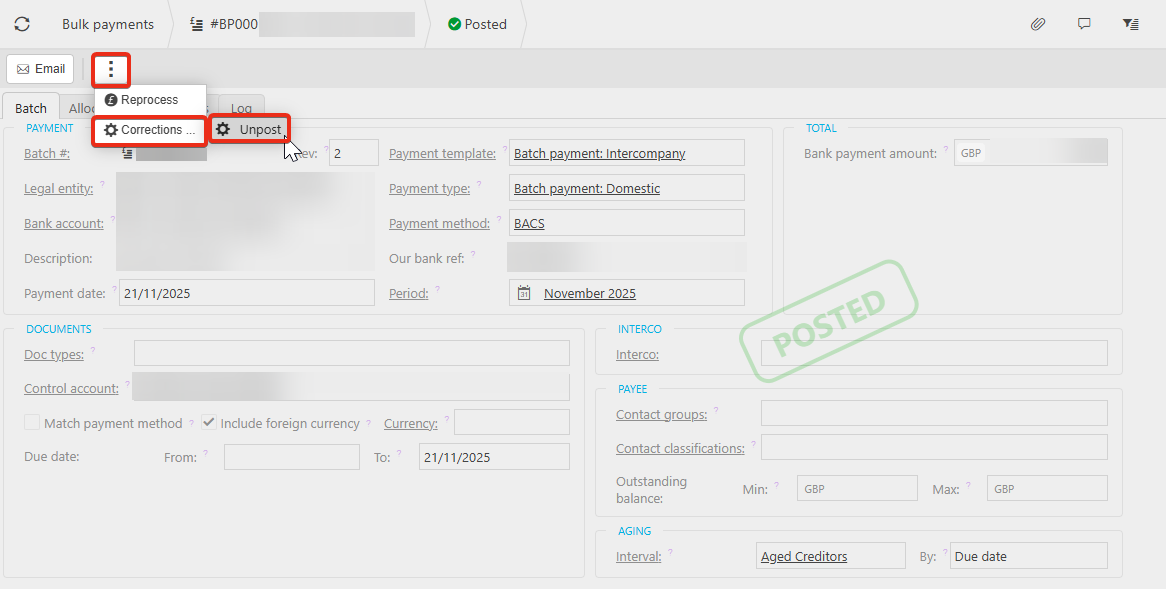
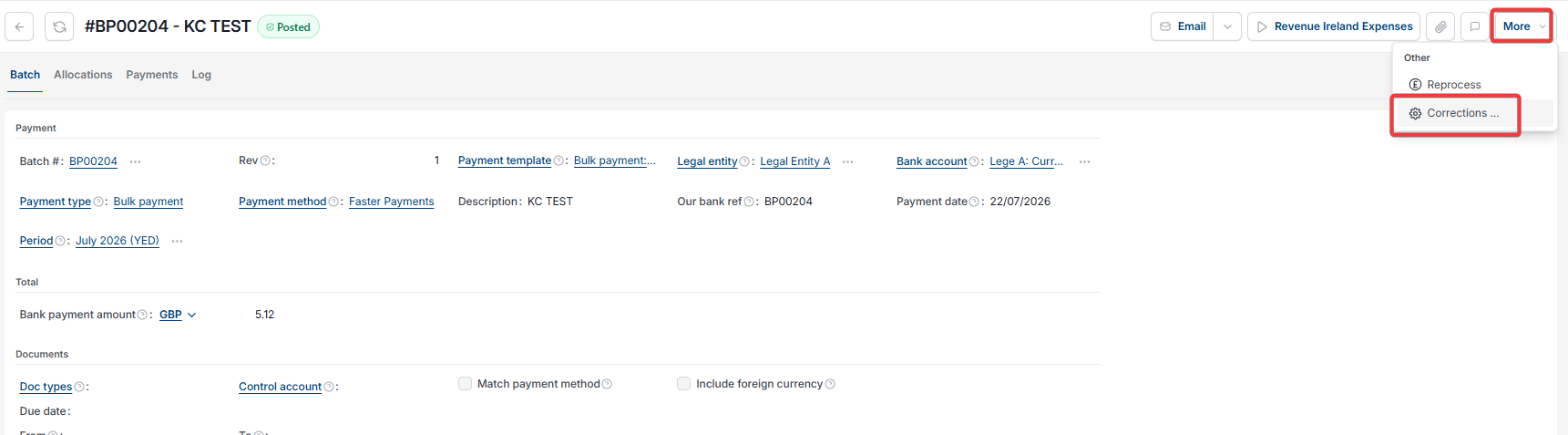
- Open the bulk payment, select the ellipsis menu (the three dots) or the more button, depending on your screen then select 'Corrections'
- Select 'Unpost'
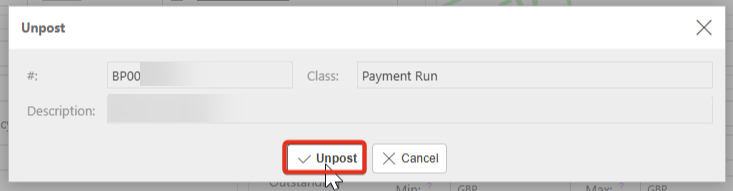
- In the 'Unpost' window, select 'Unpost' to confirm.
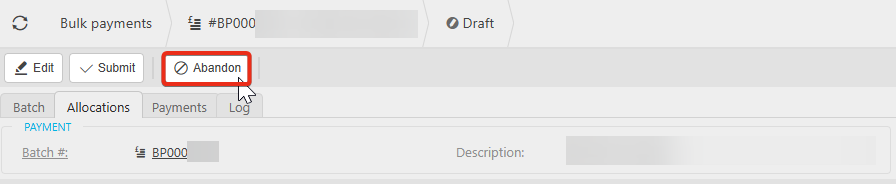
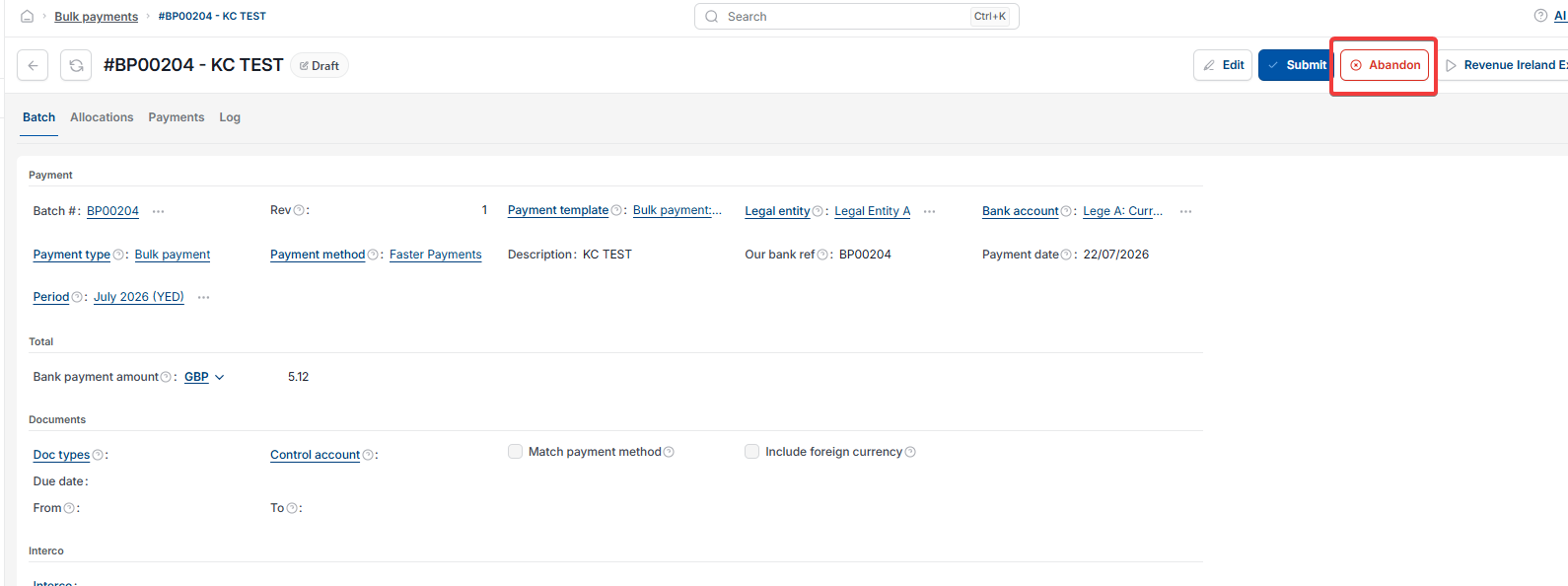
Once unposted, the bulk payment returns to a Draft state, and an 'Abandon' button becomes available. Select 'Abandon' to cancel the payment.

Reverse bulk payment
Abandon bulk payment
Unpost bulk payment
Cancel incorrect bulk payment
Bulk Payment Correction Unpost permission