

This article covers fixing the iplicit Excel add-in when it isn't working correctly in Excel. Try reinstalling the add-in first. If that doesn't resolve it, clearing the Excel cache usually will.
Reinstalling the Excel add-in
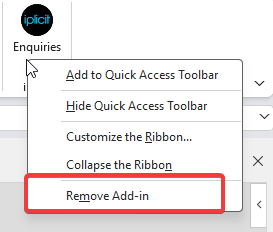
- In Excel, right-click the iplicit add-in on the ribbon
- Select 'Remove Add-in'
- Reinstall the add-in and check whether the issue is resolved.
Clearing the Excel cache
If reinstalling the add-in doesn't resolve the issue, clear the Excel cache instead.
- Close all Office 365 applications, including Excel, Outlook and Word
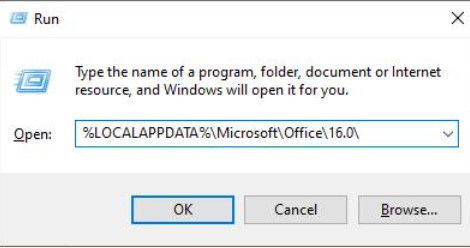
- Press the Windows key and 'R' together to open the 'Run' dialog
- Type
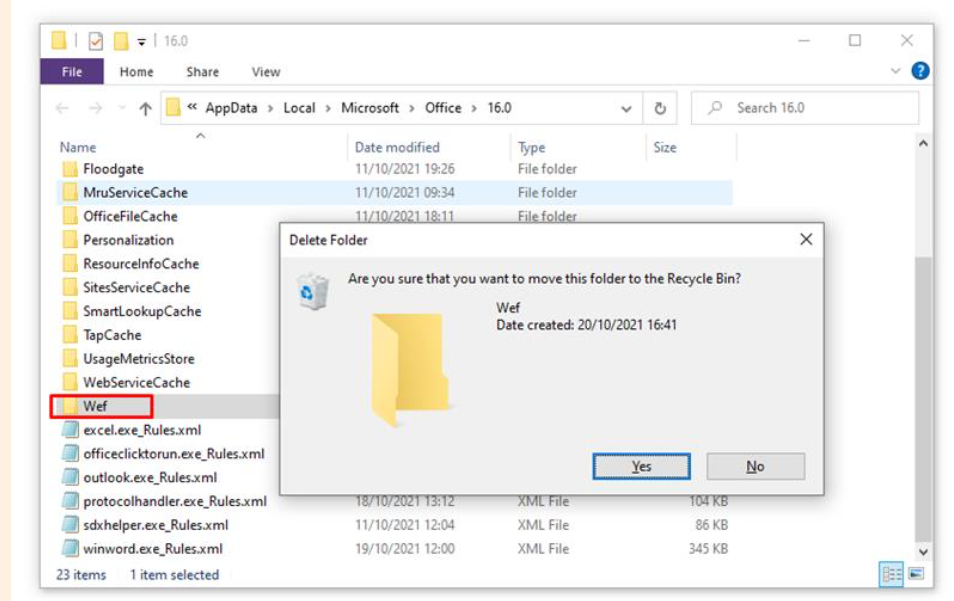
%LOCALAPPDATA%\Microsoft\Office\16.0\and select 'OK' - In the folder that opens, find and delete the 'Wef' folder
- Confirm the deletion when prompted
- Reopen Excel and run the report add-in again to check whether the issue is resolved.
If the issue persists
Log a support ticket with any relevant screenshots, error messages and the steps you've already taken, so we can investigate further.
Customer search terms
Excel add-in not working
Reinstall Excel add-in
Clear Excel add-in cache
Excel add-in error
Wef folder Excel
Fix iplicit Excel add-in