

This article covers setting up an authorisation workflow in iplicit that sends approval requests to the right department manager automatically (sometimes called approval routing). It works on any line-based document type that supports authorisation workflows, such as Purchase Orders (POs), expenses and requisitions.
How department manager routing works on an authorisation workflow
Each line on a document has a distribution target – the department that line is charged to. When the document is submitted, the authorisation workflow reads the department on each line and sends the approval request to that department's manager. Nobody needs to choose the approver by hand.
Because this works line by line, it uses line-level approval. For the difference between header level and line level, see 'Should I set up an authorisation workflow at header level or line level'.
Before you set up department manager routing
Check these before setting up department manager routing on an authorisation workflow:
- Each department has a manager assigned in the department settings
- Each document line has the correct department as its distribution target
- The authorisation workflow is active and assigned to the correct document type and Legal Entity.
Setting up department manager routing on an authorisation workflow
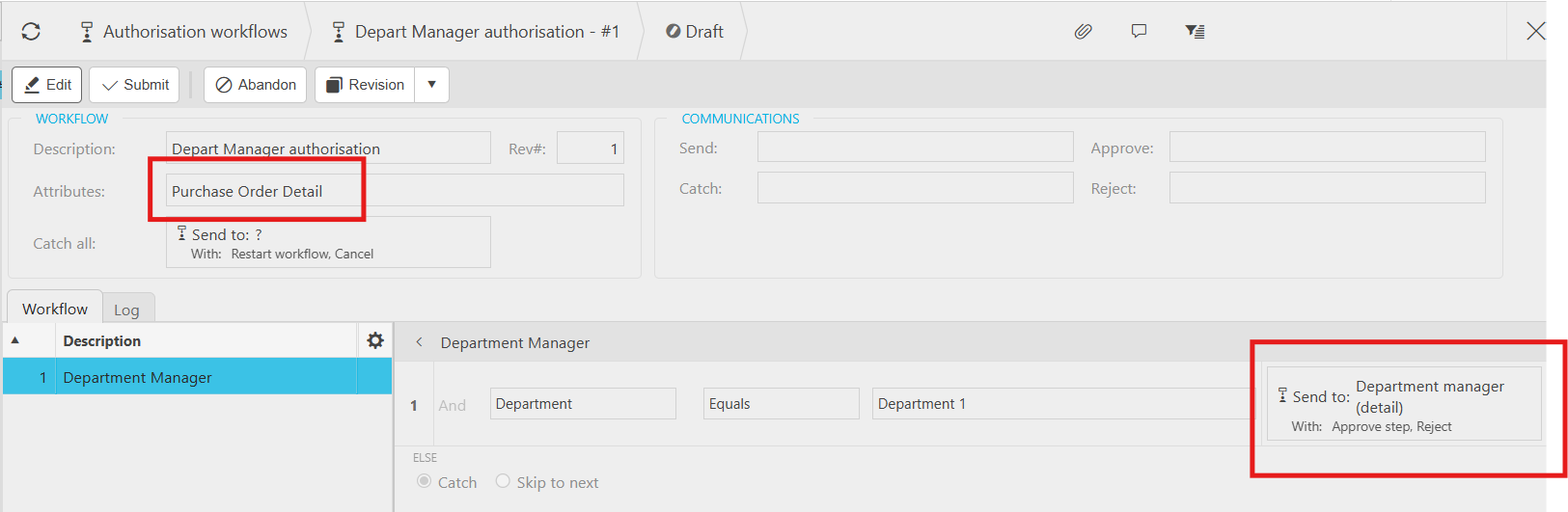
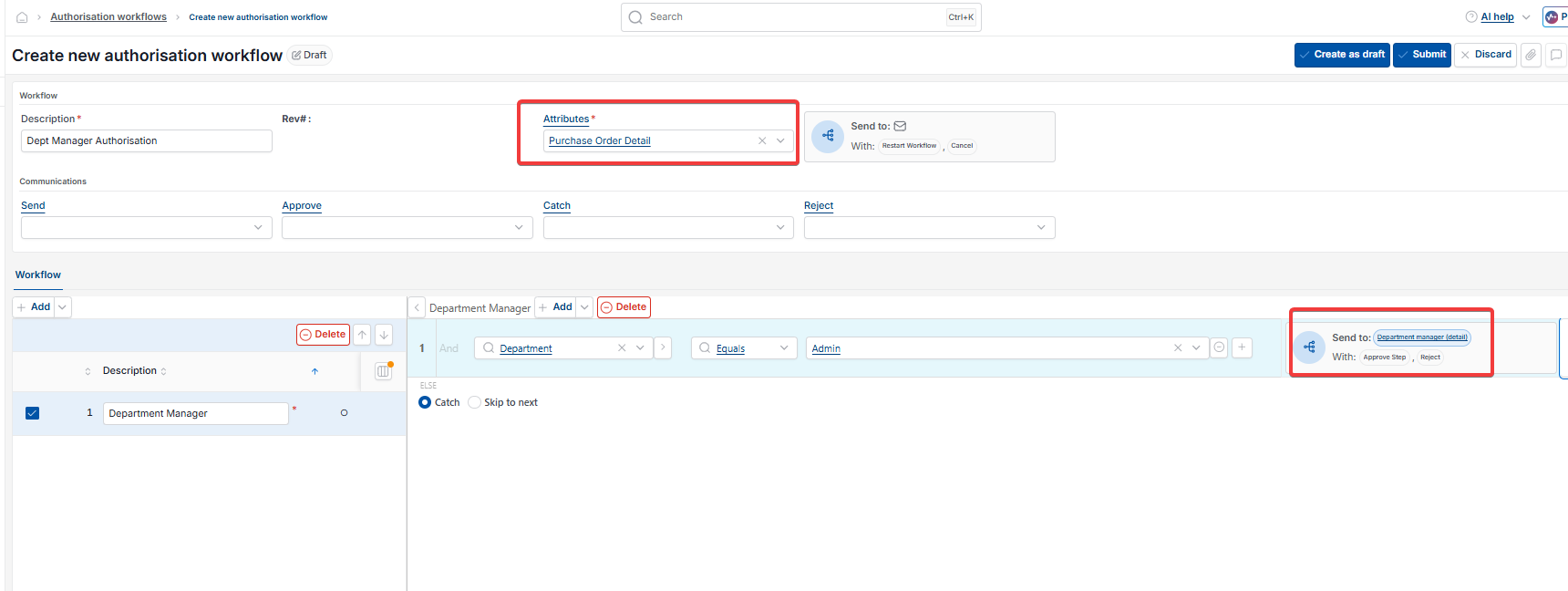
- Navigate to 'Authorisation workflows' and open the workflow, or create a new one
- Add a new authorisation step or edit an existing one
- In the 'Send to' field, select 'Department manager (detail)'
- Save the step.
When a document is submitted, iplicit sends the approval request to the manager of the department on each document line.
Troubleshooting department manager routing on an authorisation workflow
If approval requests aren't reaching the right department manager, check the distribution target on the document lines first. This is the most common cause. Then check that the department has a manager assigned in the department settings.