

iplicit Insights is the embedded analytics tool within iplicit. This article covers how to configure Insights for your environment and grant users access to the executive finance dashboard. For guidance on using the dashboard, see 'Using the iplicit Insights executive finance dashboard'.
Before you begin
The executive finance dashboard is being rolled out to customers automatically, so you do not need to request access. Once your environment is enabled, use the steps below to configure it.
If you expect your environment to have access to the executive finance dashboard but don't see it, contact support.
Step 1: Configure the rolling 12-month revenue chart
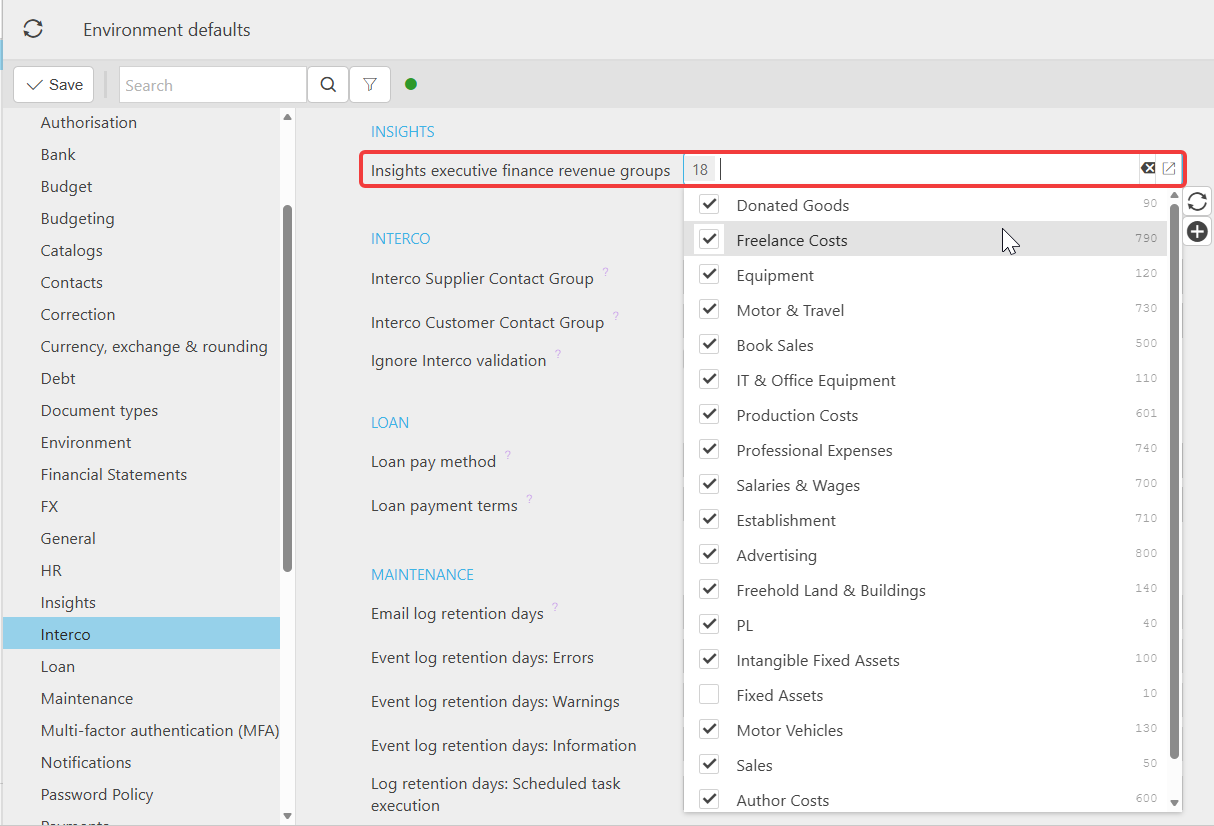
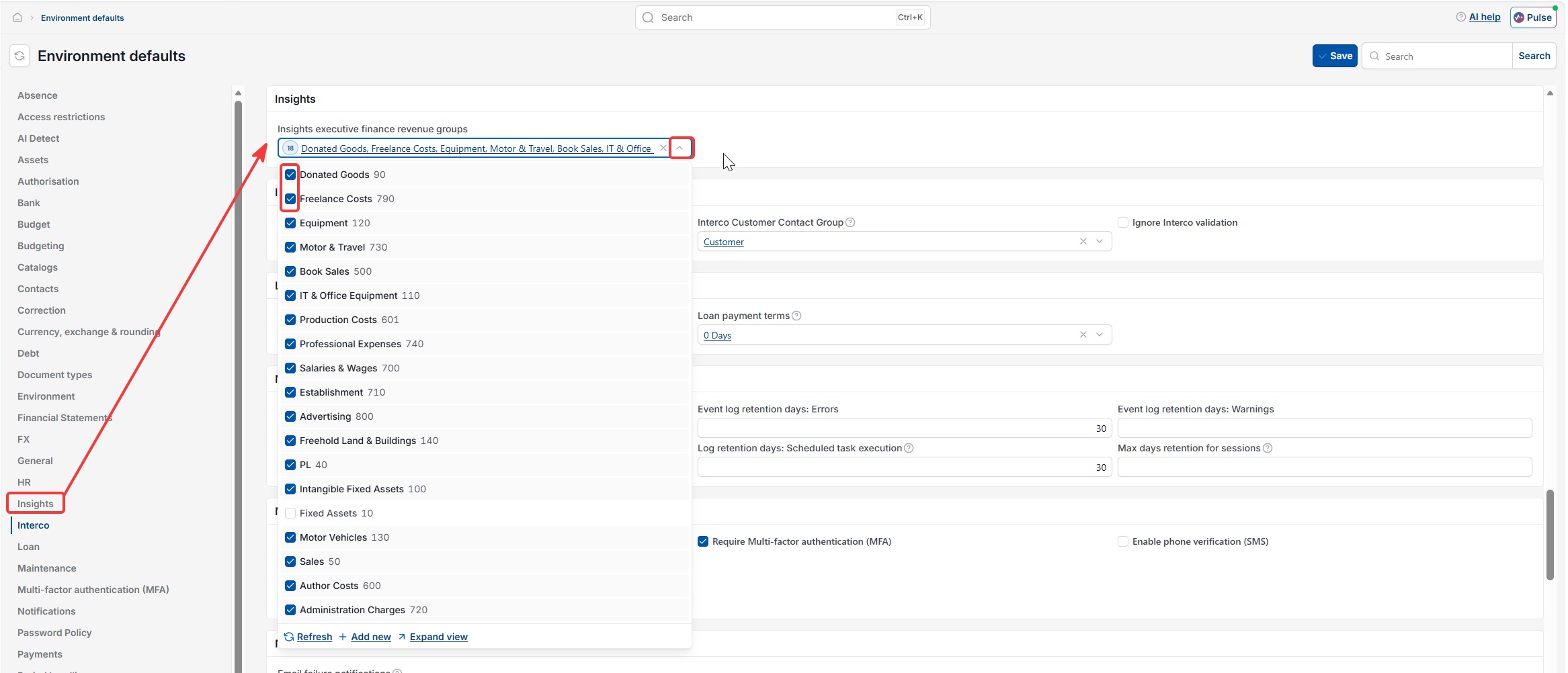
The rolling 12-month revenue chart within the executive finance dashboard needs revenue groups defined before it will show data.
- Navigate to 'Environment Defaults'
- Locate 'Insights' using the side navigation or the search field
- Under 'Insights Executive Finance Revenue Groups', select the nominal groups that represent your revenue
- Save your changes
If you're unsure which groups to assign, check with your iplicit implementation contact or refer to your chart of accounts setup.
Step 2: Assign the Insights user role
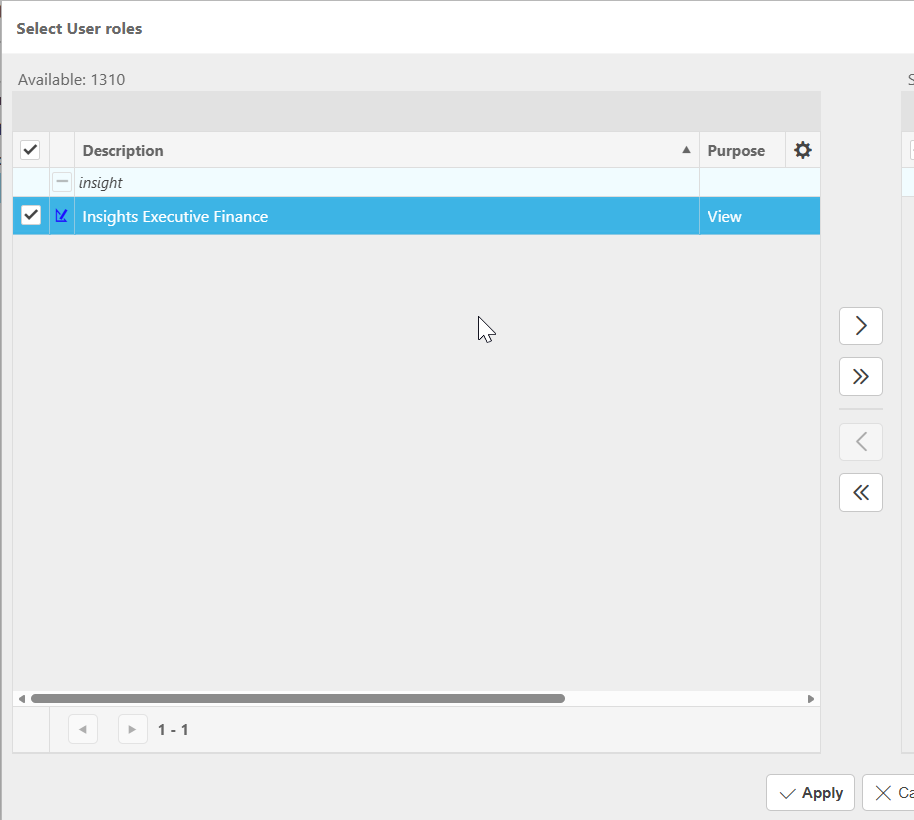
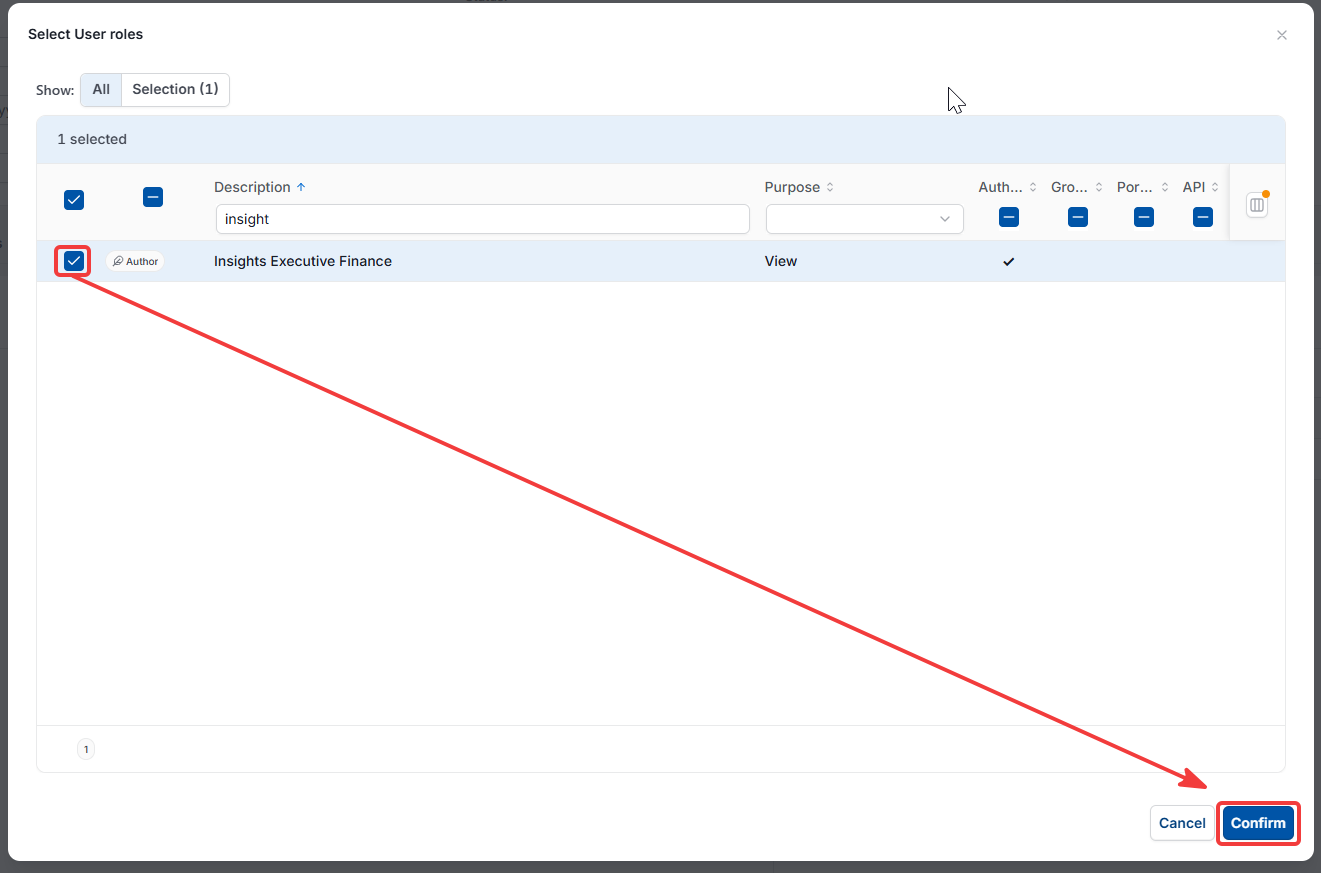
Users need the 'Insights Executive Finance' role assigned before the executive finance dashboard appears for them in Pulse.
- Navigate to the user record for the person you want to grant access to
- Assign the role 'Insights Executive Finance'
- Save the user record
Repeat this for each user who needs access. Users without this role will not see the Insights option in the Pulse panel.
How data refreshes
The executive finance dashboard refreshes once a day, overnight. Figures reflect the previous day. This is expected to change as later phases of the rollout progress.
iplicit insights
Setting up insights
Executive finance revenue groups
Insights executive finance role
Enable insights dashboard
Configure insights environment defaults