

This article covers finding an abandoned document within any document finder screen, such as 'Purchase Invoices'. The same method applies to any document type, including nominal journals, sales invoices, purchase invoices, sales orders, purchase orders and cash documents. When a document is abandoned, it isn't removed from iplicit – it's retained with a status of 'Abandoned' so it remains fully auditable.
Exposing locked and abandoned documents in the document finder
By default, abandoned and locked documents are hidden from every document finder, and won't appear even once you filter by status, until you expose them first.
- Open any document finder screen for the document type you're looking for – for example, the 'Purchase Invoices' finder
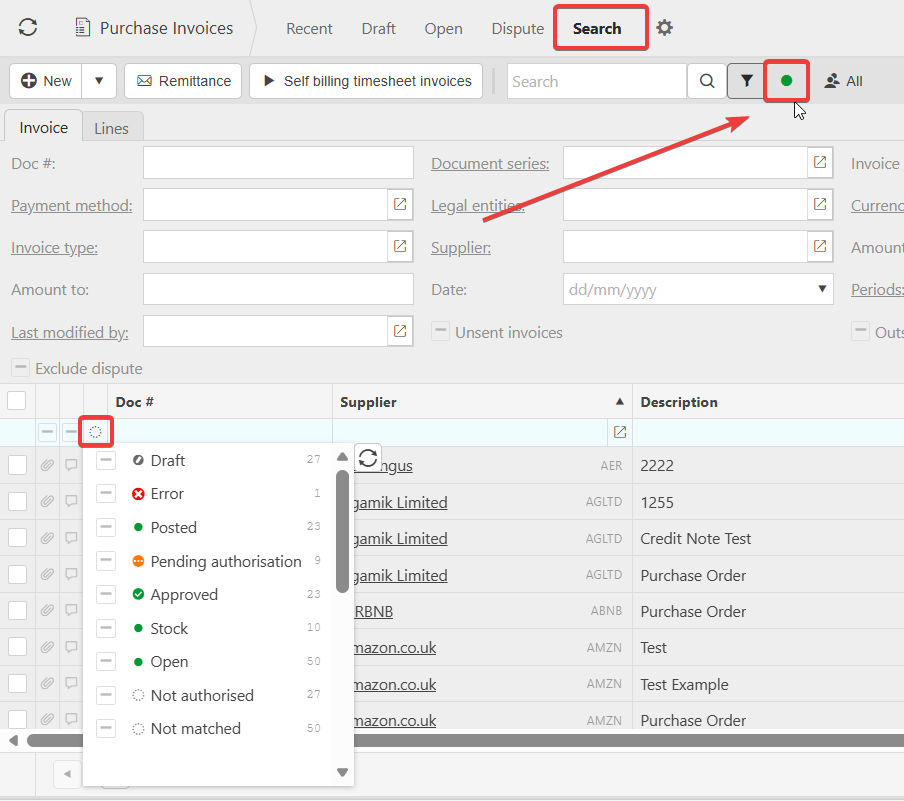
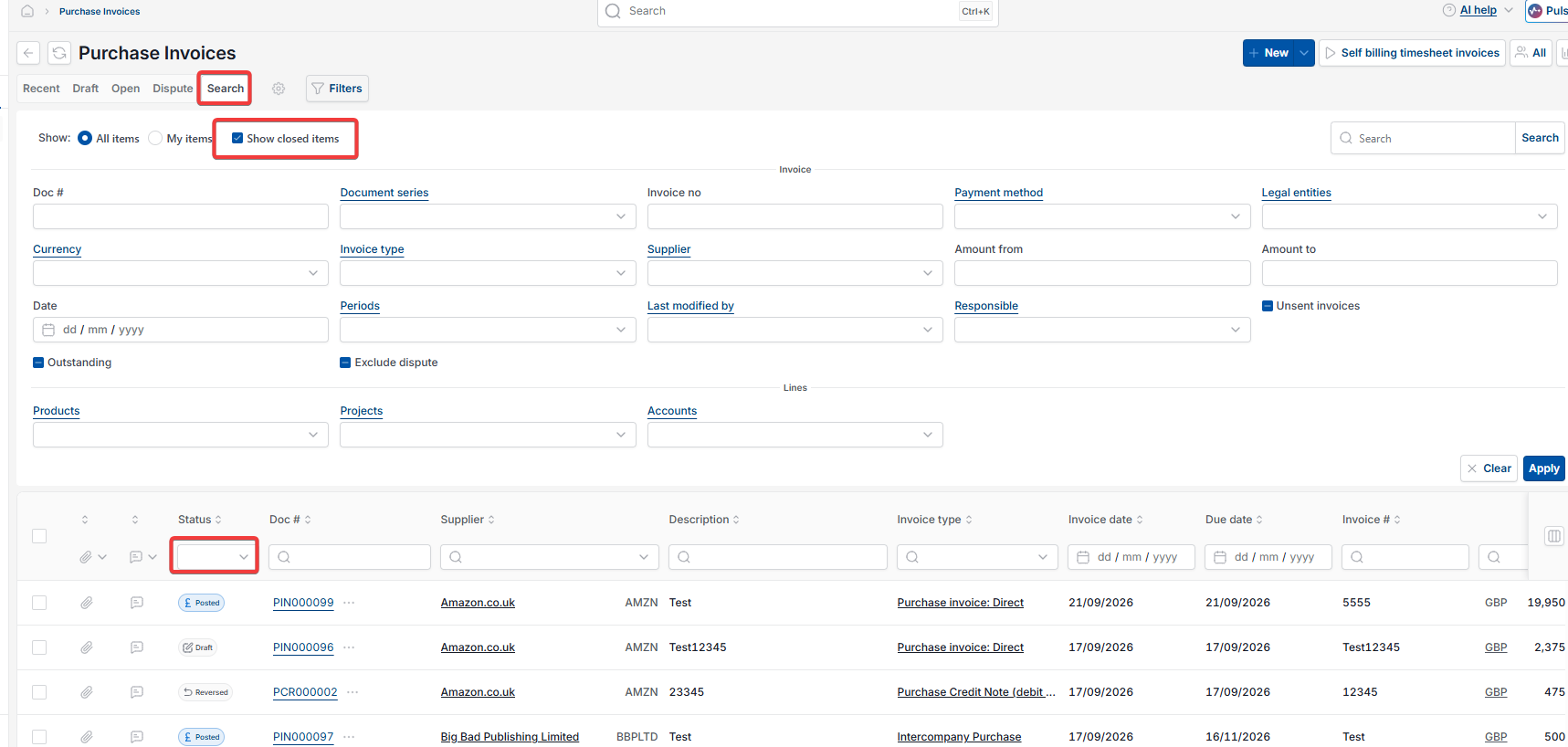
- Depending on your screen, find the green dot next to the filter icon, near the search box, or select the 'Search' tab and tick the 'Show closed items' box
- Select the green dot, or 'Apply' if using 'Show closed items', to expose locked and abandoned documents in the view.
Filtering by abandoned status in the document finder
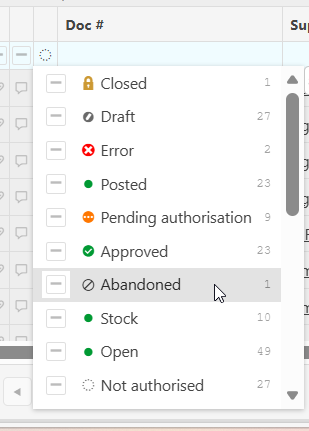
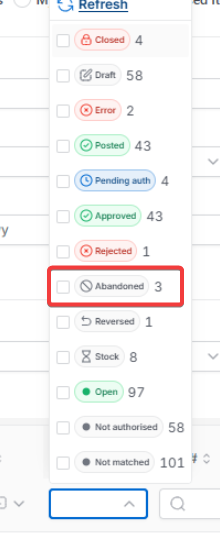
Once locked and abandoned documents are exposed, the status quick-filter on the results grid includes 'Abandoned' as an option, alongside statuses such as 'Draft', 'Posted' and 'Closed'.
- Select the status icon at the top of the 'Doc #' column, above the results grid
- Find 'Abandoned' in the list
- Tick 'Abandoned' to filter the results.
The document finder now displays every abandoned document of that type within the current view. Select any line to drill into the original document.
Why an abandoned document might still not appear in the document finder
If an abandoned document doesn't appear after applying the status filter, the most common causes are:
- Locked and abandoned documents haven't been exposed using the green dot or 'Show closed items'
- The date range or other search criteria exclude the period the document was originally created in
- You're searching from the wrong document finder for the document type – for example, looking in the sales invoice finder for an abandoned nominal journal
- Your user permissions don't include access to the Legal Entity the document was raised against
- Data Access Control settings restrict your visibility of the relevant ledger or dimension.
Adjust the filters, switch to the correct document finder, or check your access with an iplicit administrator if the document is still not visible.
Find abandoned document
Locate document by status
Expose abandoned document
Search for abandoned invoice
Abandoned status filter