

This article covers changing the logo shown on documents and emails for a Legal Entity in iplicit. The logo is uploaded on the Images screen, then assigned to the Legal Entity under the 'Stationery and images' tab.
Uploading a logo on the Images screen
Before you assign a logo to your Legal Entity, upload it as an image record.
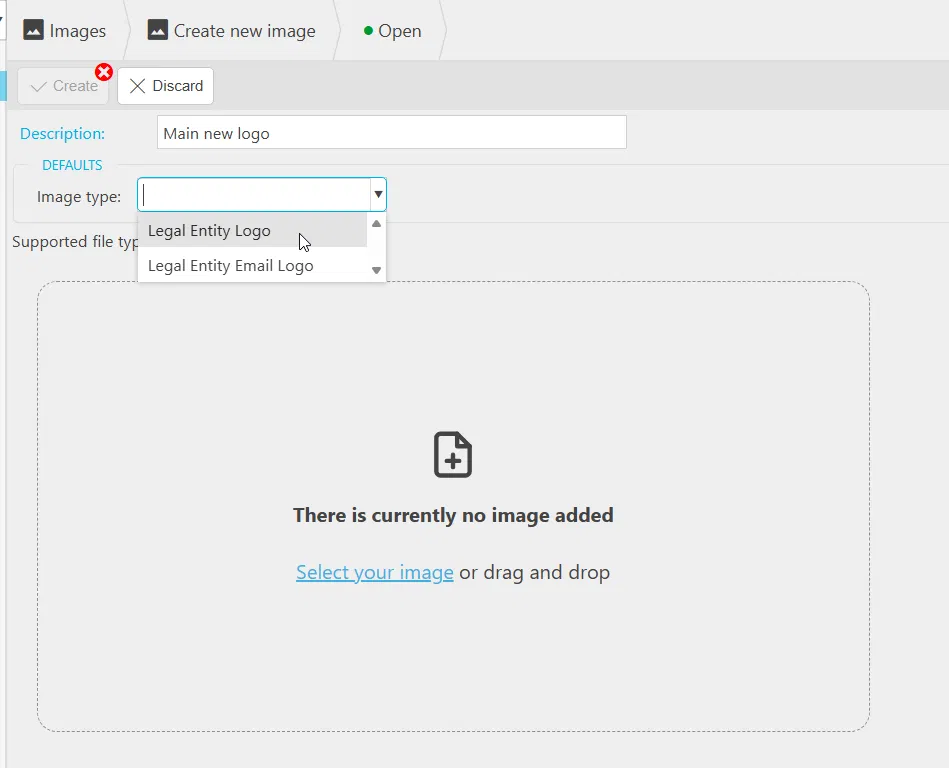
- Navigate to the Images screen
- Select 'Image type' and choose 'Legal Entity Logo' for your main logo, or 'Legal Entity Email Logo' for a separate, email-friendly version
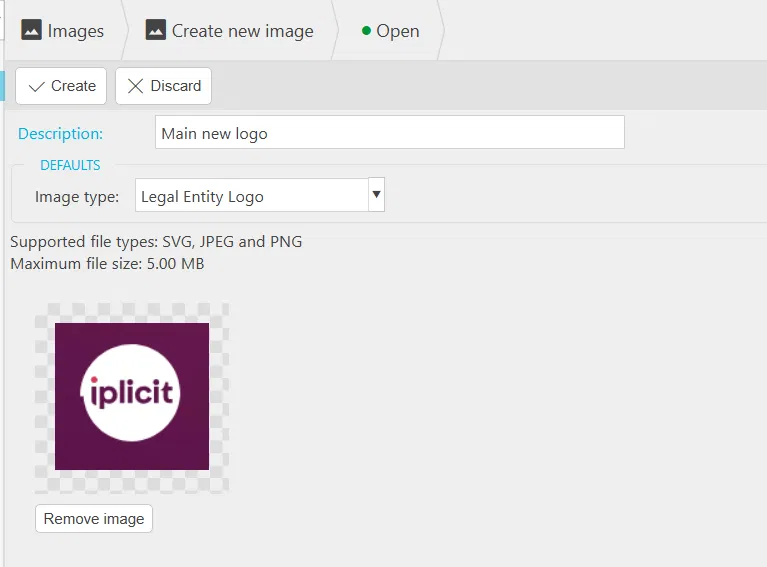
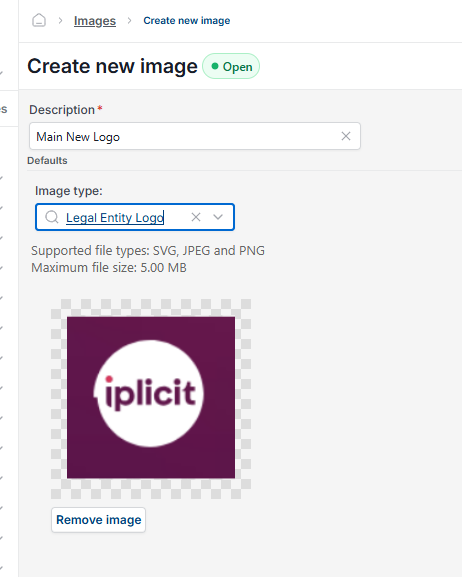
- Add a clear description so you can identify the image later
- Select your image file and select 'Create' to save it.
If you want a different logo for emails – for example, a smaller or differently laid-out version – upload it separately with 'Legal Entity Email Logo' selected.

File size limits on the Images screen
- Main logos: up to 5MB
- Email logos: up to 1MB.
Supported file types are SVG, JPEG and PNG.
Assigning the logo in the Legal Entity record
Once your image is uploaded, assign it to the Legal Entity so it appears on documents and emails.
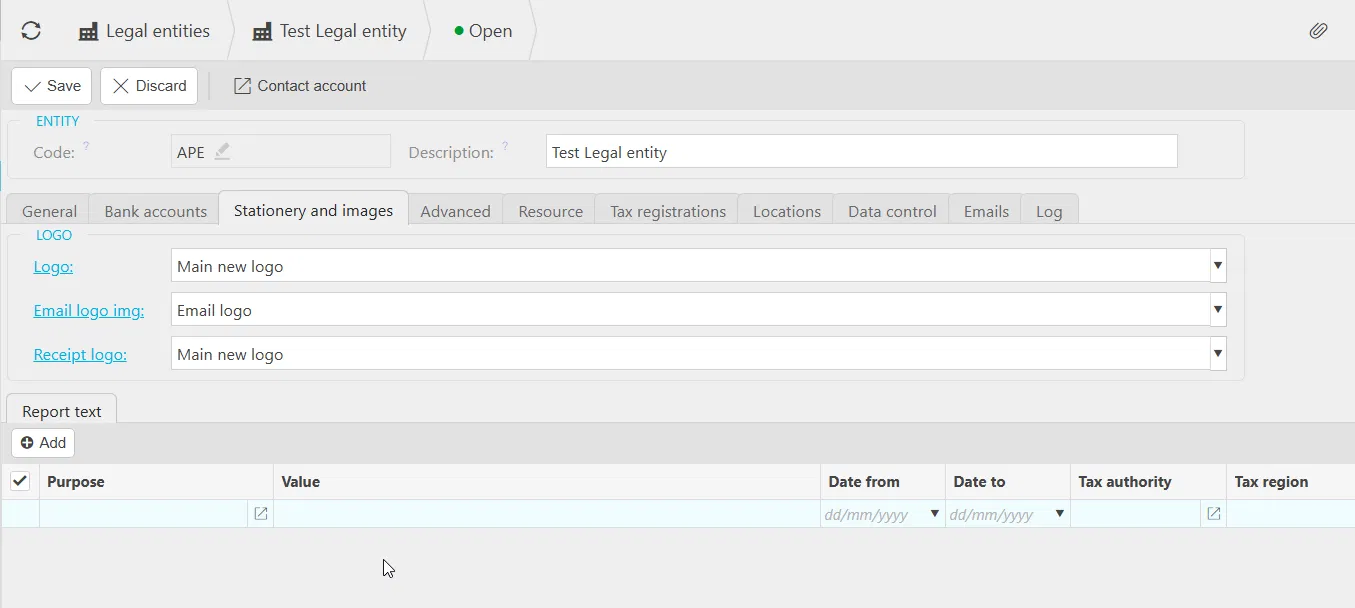
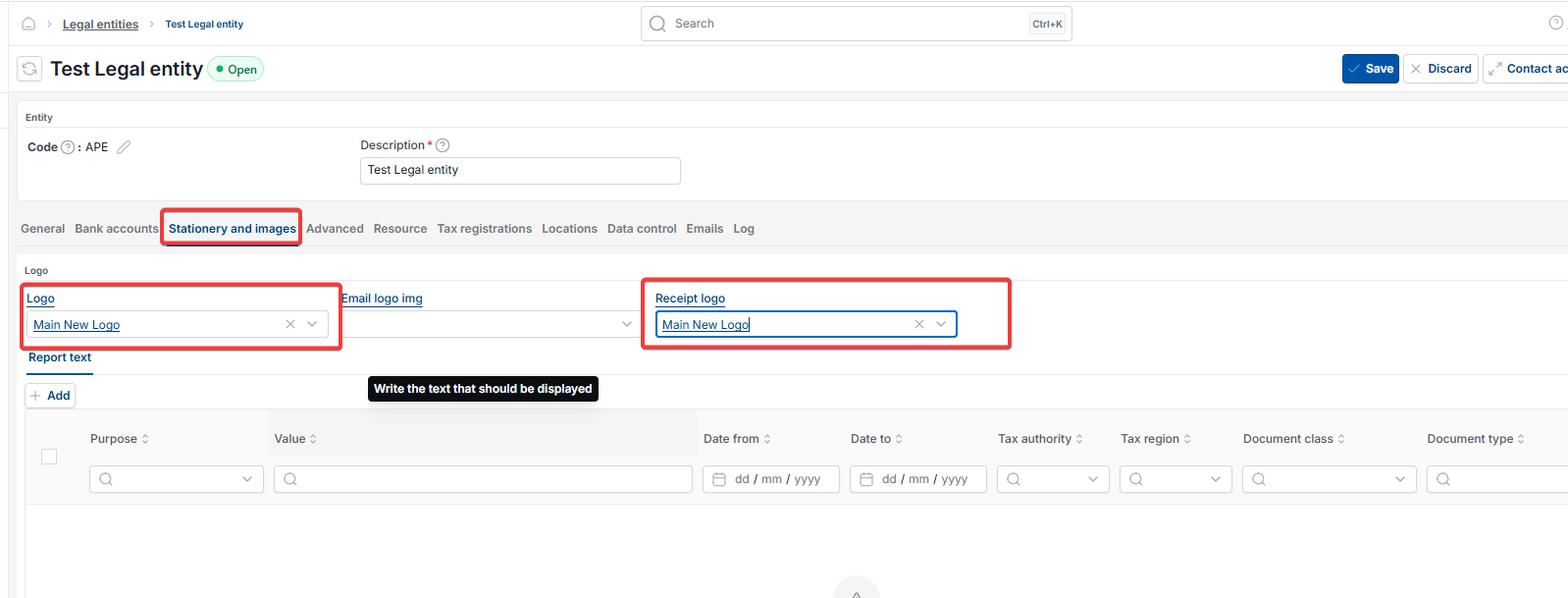
- Open your Legal Entity record and go to the 'Stationery and images' tab
- Select the 'Logo' dropdown and choose your uploaded main logo
- Select the 'Email logo img' dropdown and choose your email logo, if you uploaded one separately
- Select the 'Receipt logo' dropdown and choose a logo – this is often the same as your main logo
- Select 'Save'.
Checking the logo on a document and its email
Confirm the logo is pulling through correctly before relying on it.
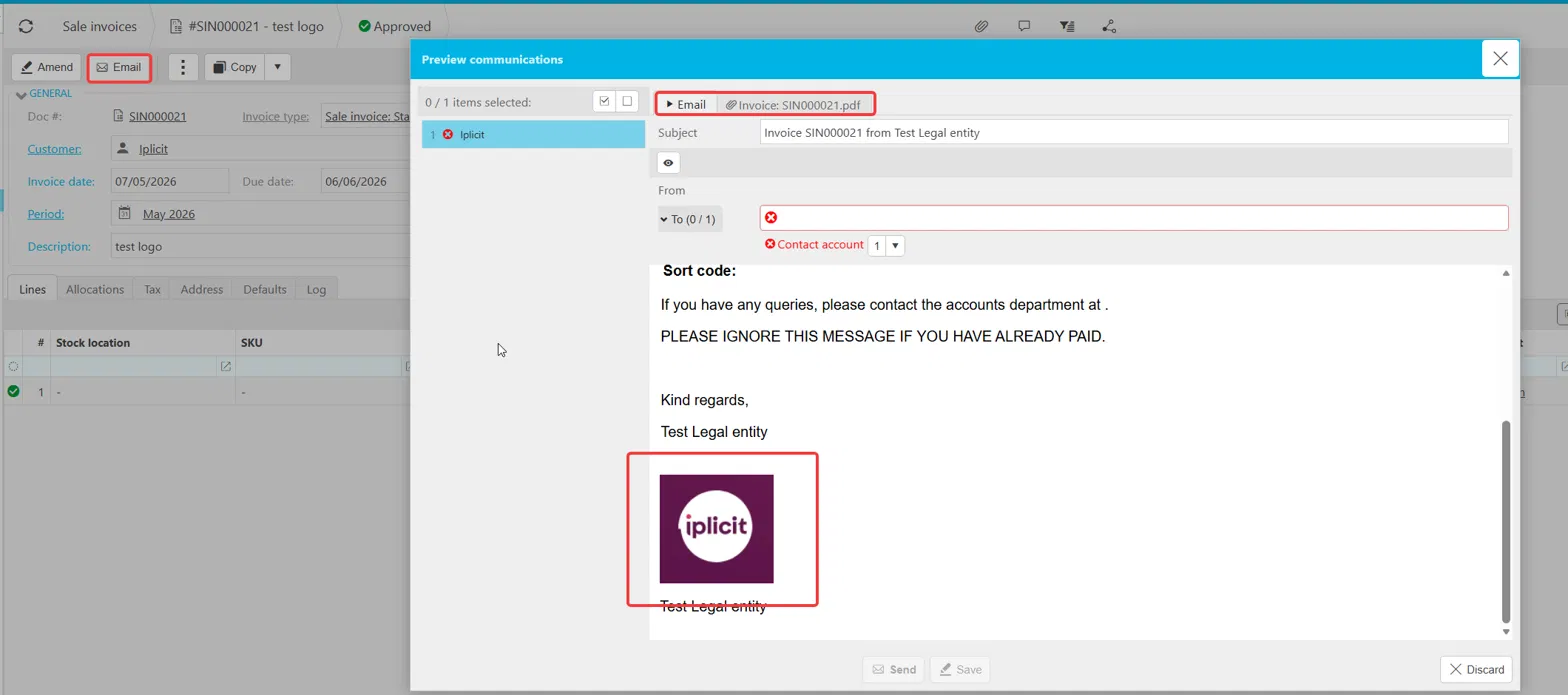
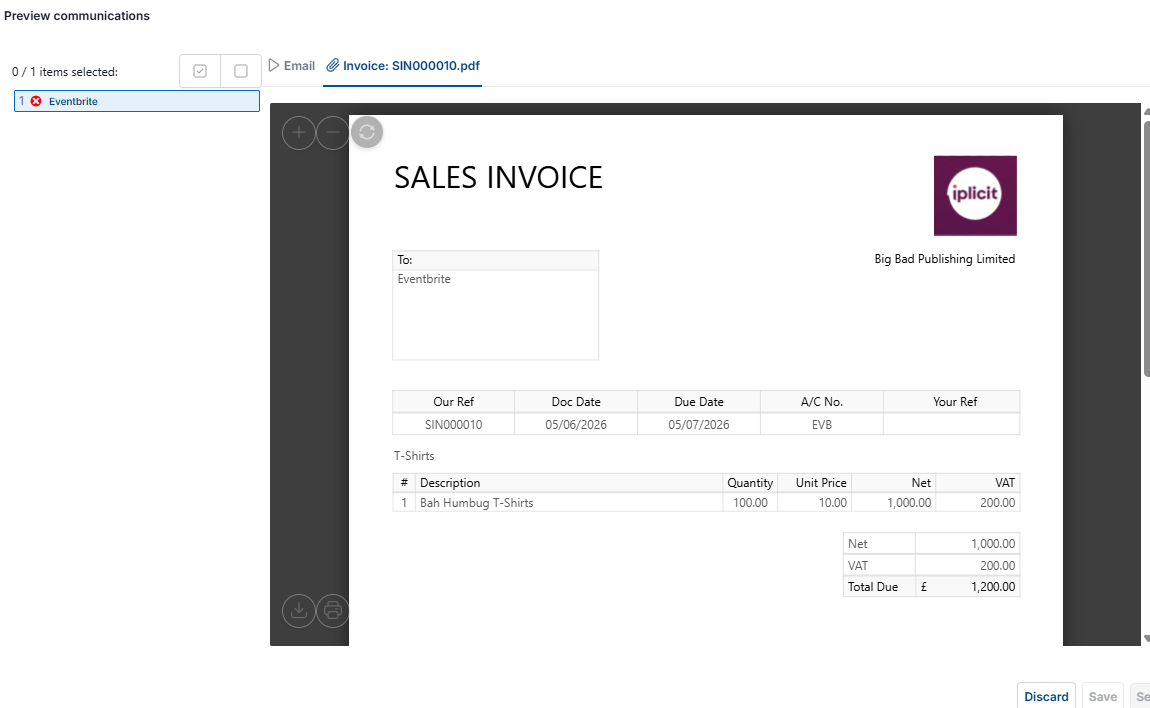
- Open a document that uses the logo, such as a sale invoice, and select 'Email'
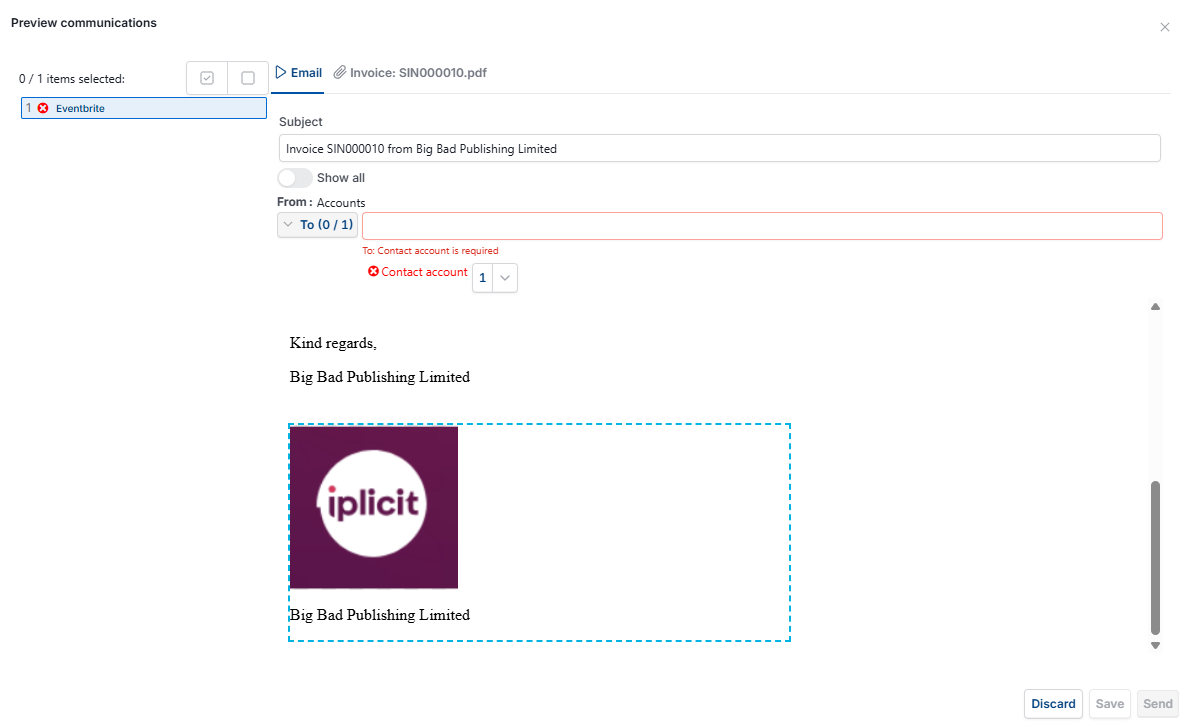
- Check the logo appears correctly in the email preview
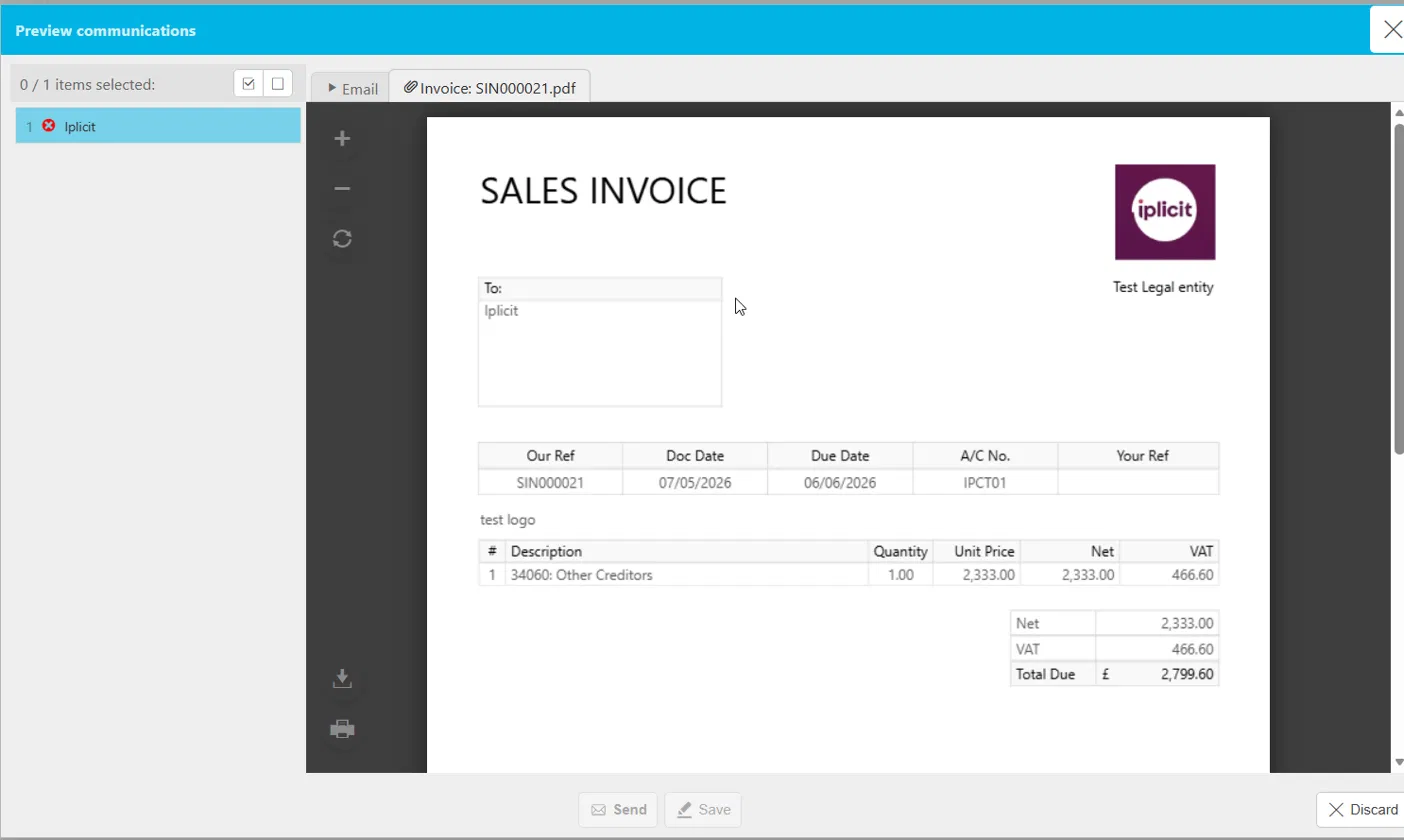
- Select the attached PDF to check the logo also appears correctly on the document itself.
If the logo doesn't appear as expected on either the email or the PDF, this may be due to additional configuration in your environment. Raise a support ticket and our analytics team will investigate.
When to raise a support ticket instead
A few scenarios need our analytics team to make the change for you rather than being self-service:
- You want to change the logo used across your entire environment – only support can update this, so raise a ticket with the image you'd like to use
- You have multiple legal entities sharing one report for customer documents, and want each entity to use its own logo – raise a ticket with the logos and the entities they apply to, and we'll create separate reports
- The logo isn't appearing correctly after following the steps above – this usually points to report or template configuration that needs investigating.
Change my logo
Update entity logo
Change invoice logo
Update email logo
Upload a new logo
Logo not appearing on documents