

This article covers exporting manual journal lines to Excel for reference within the General Ledger. There are two ways to do this: exporting directly from an individual manual journal, or using the manual journal detail enquiry to extract and filter lines across multiple journals.
Exporting lines from a single manual journal
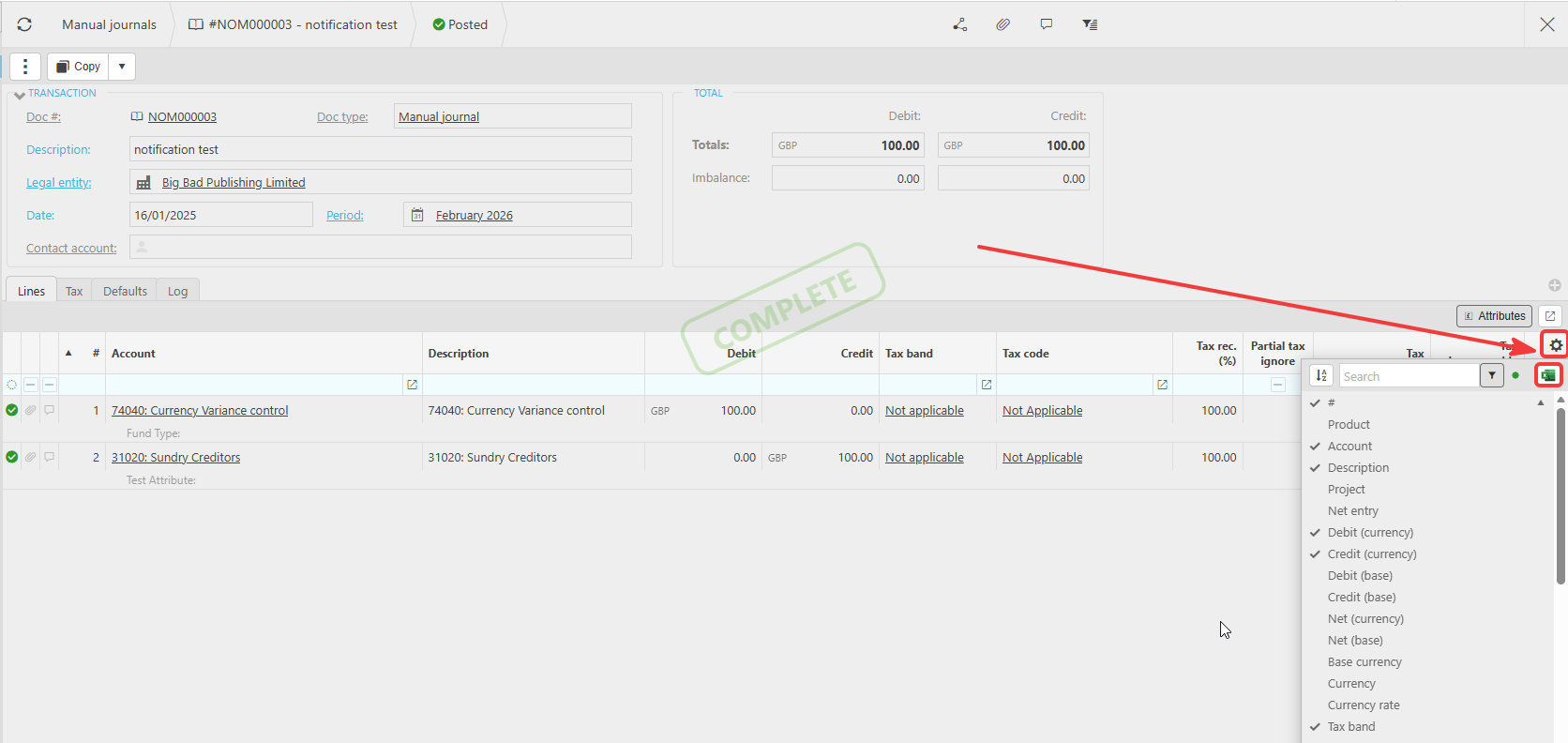
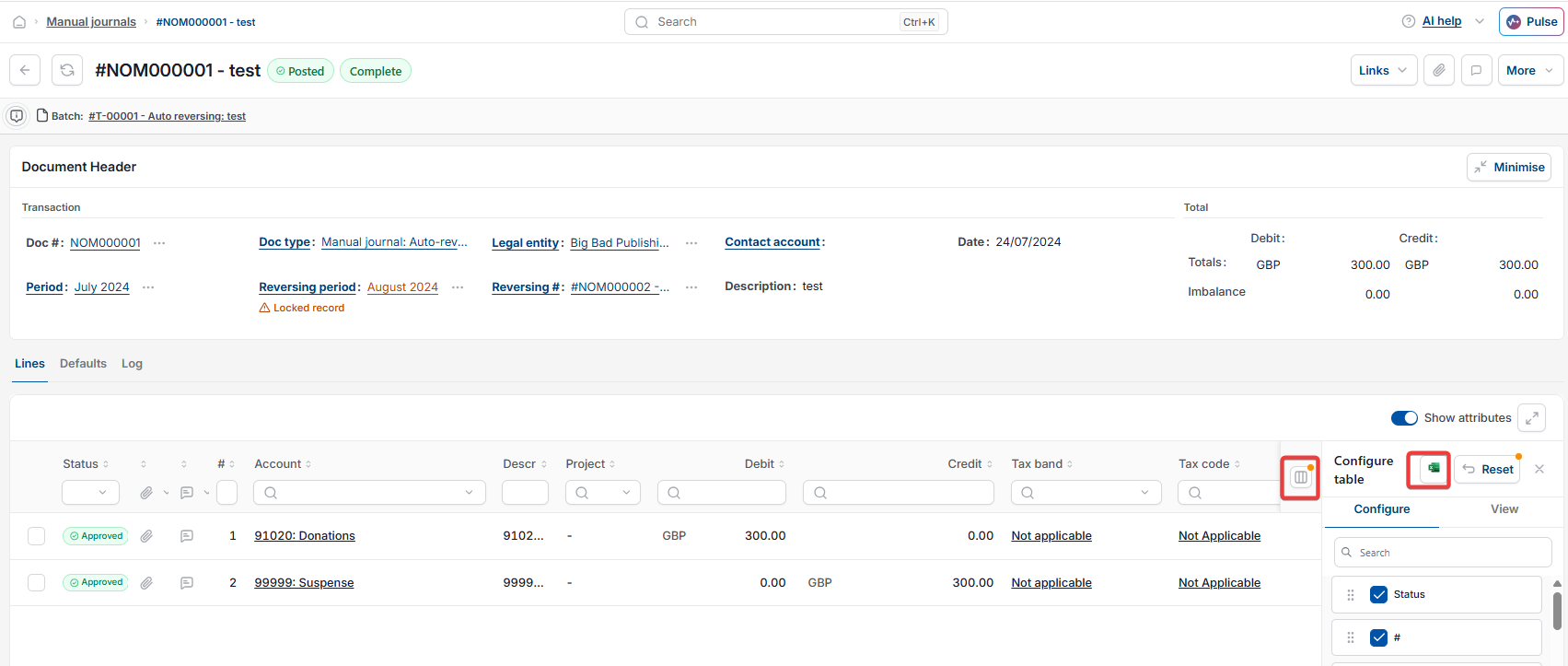
To export the lines of one manual journal, open that manual journal record. On the 'Lines' tab, select the cog icon or the cog table icon, depending on your version of iplicit, in the top right corner of the lines grid. This opens a panel listing the available columns for that manual journal. Select the green Excel icon at the top of this panel to export the visible lines to Excel.
The exported file includes the columns currently displayed in the lines grid, such as account, description, debit, credit and tax details. To change what appears in the export, tick or untick columns in the panel before exporting.
Exporting lines using the manual journal detail enquiry
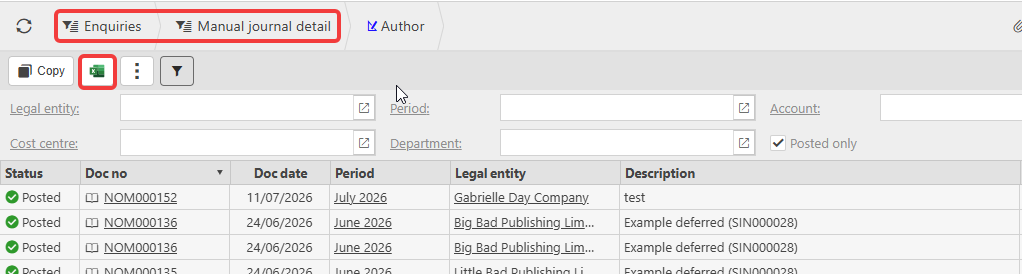
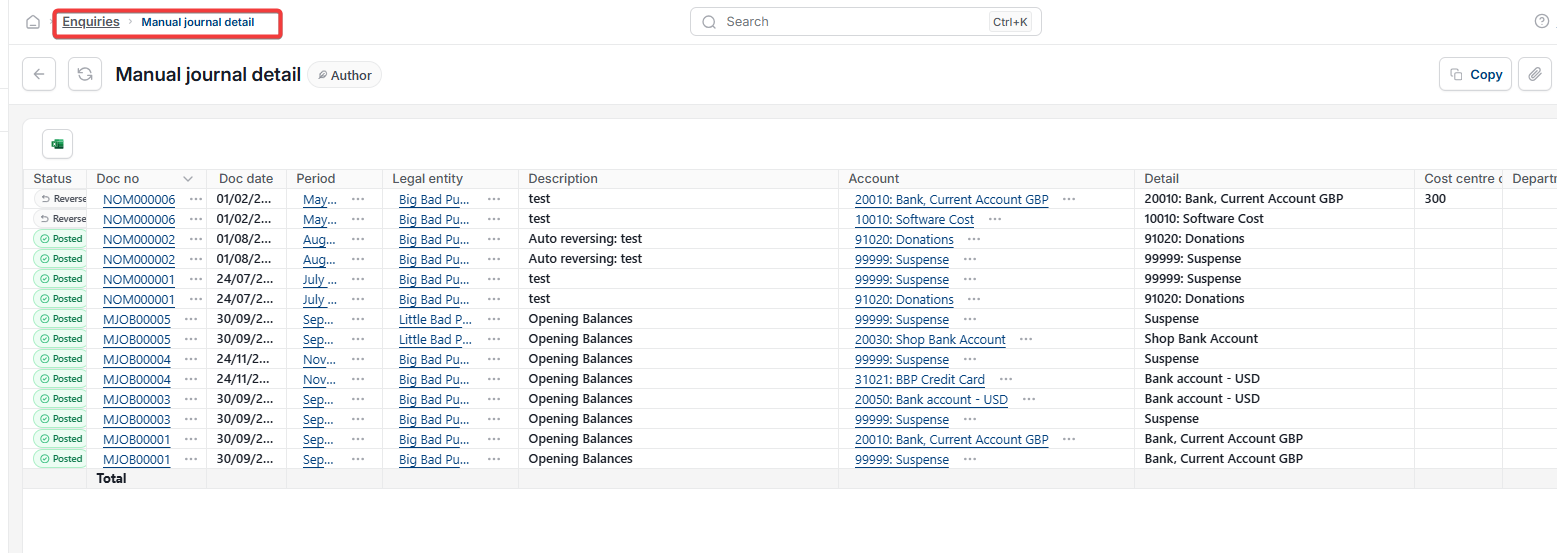
To export lines across multiple manual journals, use the manual journal detail enquiry. Filter the enquiry by date, legal entity, account or other criteria to narrow down the manual journal lines you need, then export the filtered results to Excel. This method suits reviewing manual journal activity across a period rather than a single journal.
Export manual journal lines
Manual journal to excel
Download journal lines
Extract manual journal
Manual journal enquiry export
Journal line export