

This article covers multi-factor authentication (MFA) in iplicit – turning it on for new or existing users, setting it up at login, and removing it from a user account. MFA is separate from single sign-on (SSO); if you log in through your company's SSO provider, see 'Enabling SSO for iplicit login'. If you can't log in at all, see 'Experiencing difficulties when logging in to iplicit'.
What MFA does in iplicit
Multi-factor authentication (also called two-factor authentication) adds a second check on top of a password before a user can access iplicit. Instead of a password alone proving who someone is, MFA asks for a second piece of proof as well, such as a code sent by email or generated by an authenticator app. This makes it harder for someone else to get into an account, even if they know the password.
Requiring MFA for new users
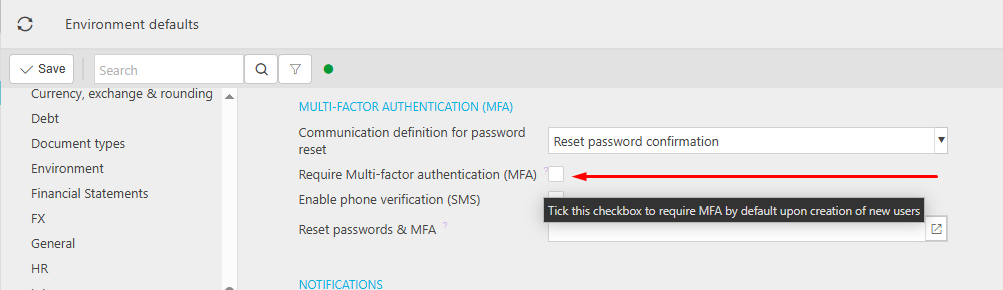
To require MFA automatically for every new user created from now on:
- Go to Environment defaults
- Find the 'Multi-factor authentication (MFA)' section
- Tick 'Require Multi-factor authentication (MFA)'
- Tick 'Enable phone verification (SMS)' as well, if you want SMS available alongside email and the Microsoft authenticator app
This setting only applies MFA to users created after it's turned on. It does not require MFA on existing user accounts.

Requiring MFA on an existing user
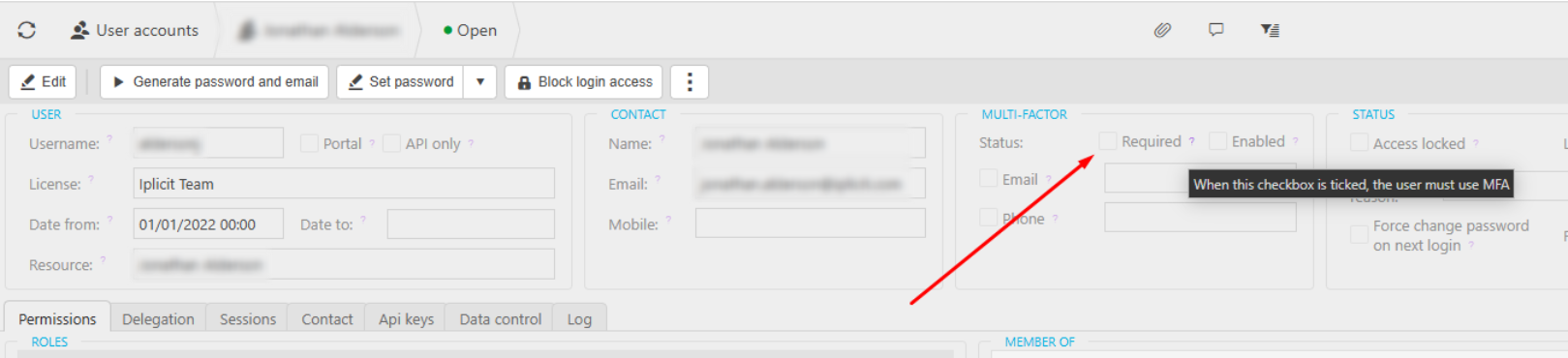
To require MFA on a user who already has an account:
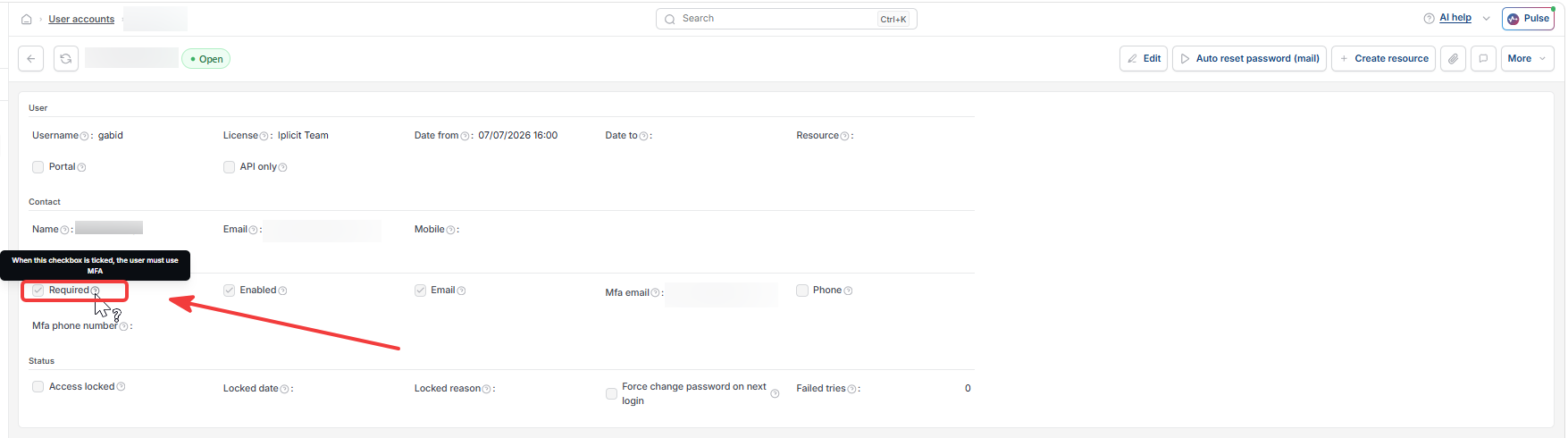
- Open the user's account record
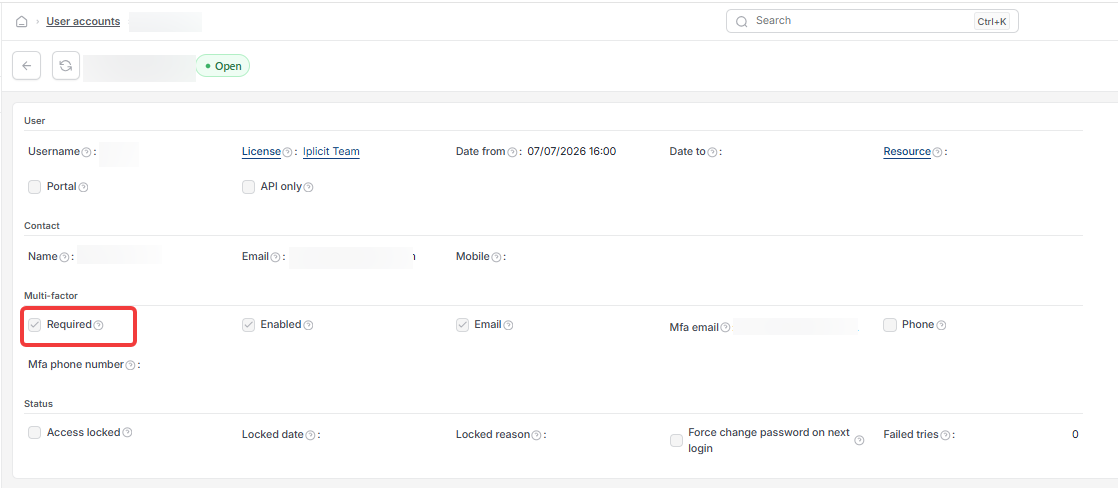
- In the 'Multi-factor' section, tick 'Required'
The user is prompted to set up MFA the next time they log in.
Setting up MFA at first login
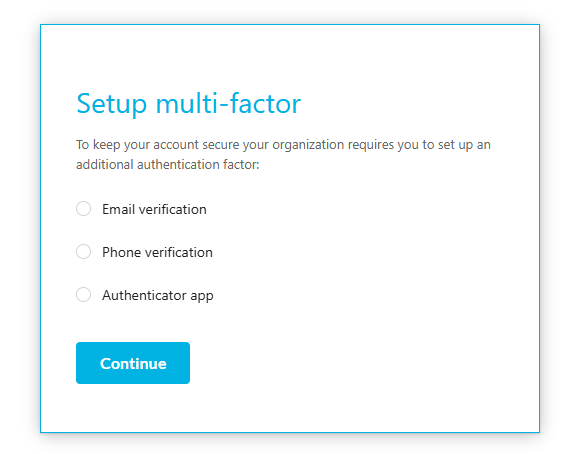
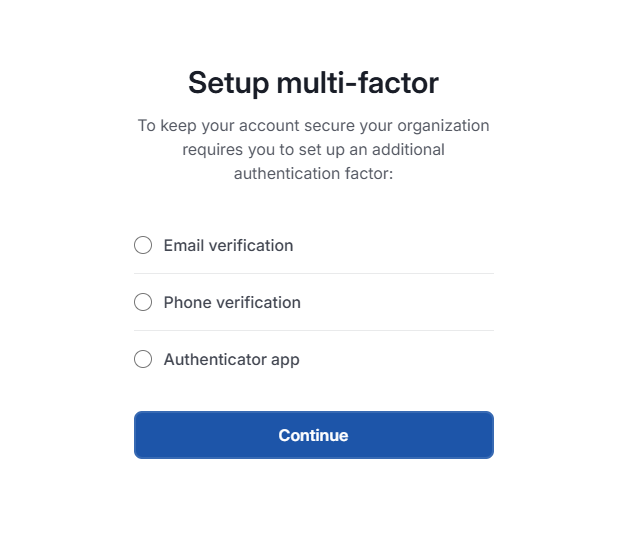
Once MFA is required on a user account, iplicit prompts that user to set up MFA the next time they log in. The user chooses one of the available methods and selects 'Continue':
- Email verification
- Phone verification – only shown if SMS has been enabled at environment level
- Authenticator app
After setup, the user's account record shows which methods are linked. Email and phone appear on the record because they're an ongoing link. The authenticator app doesn't appear, because it's single use each time and iplicit doesn't store an ongoing link for it.
Removing MFA from a user account
To remove an existing MFA link from a user's account:
- Open the user's account record
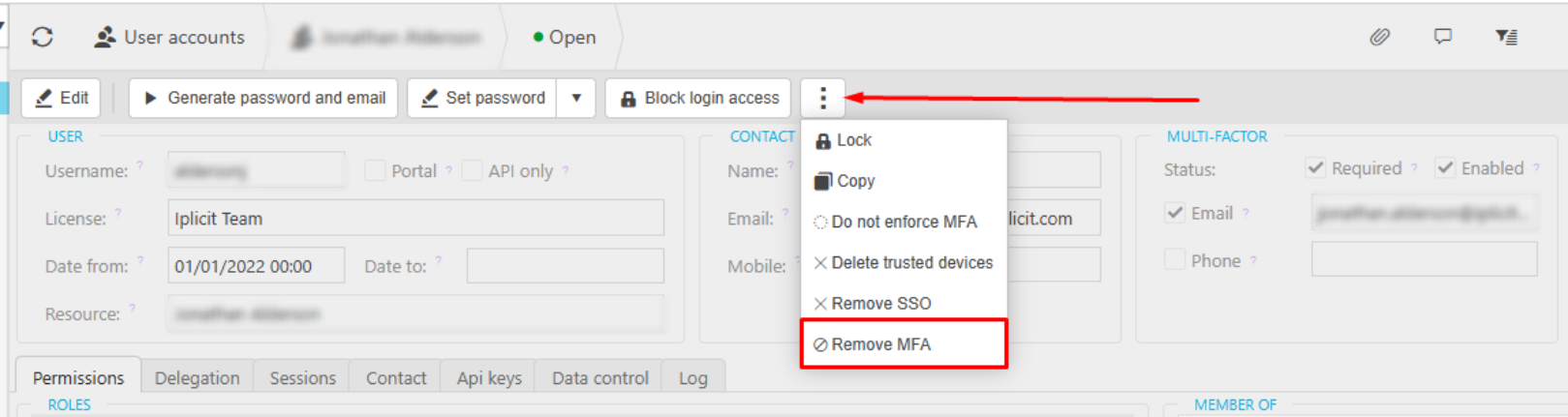
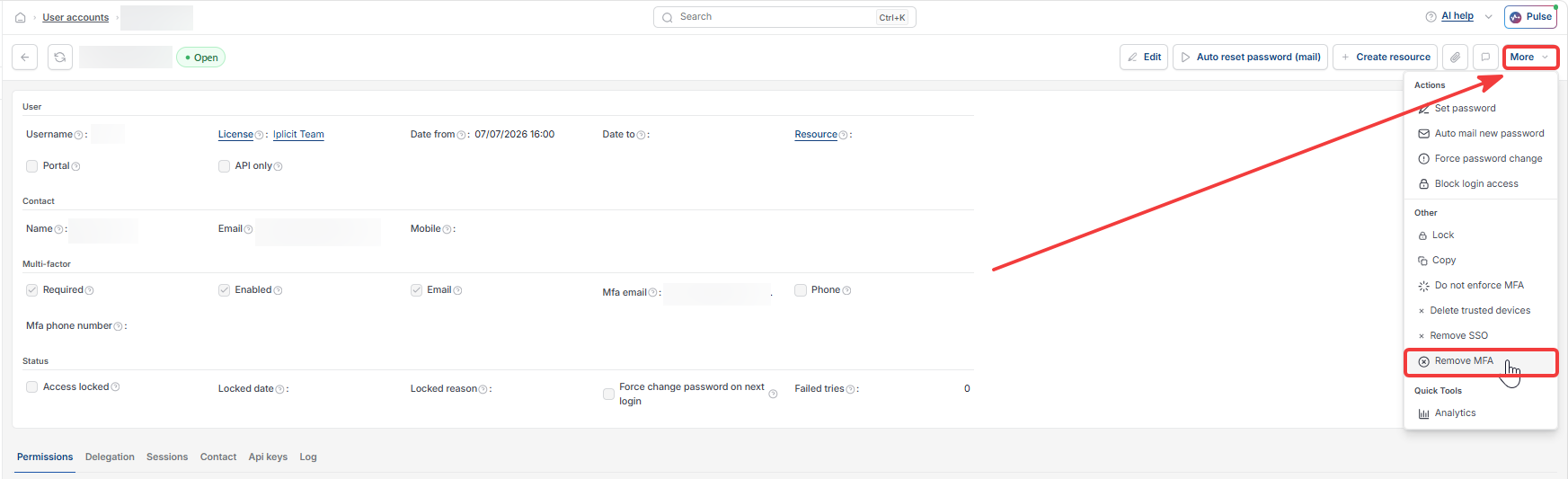
- Select the three dots or more button at the top of the account
- Select 'Remove MFA'
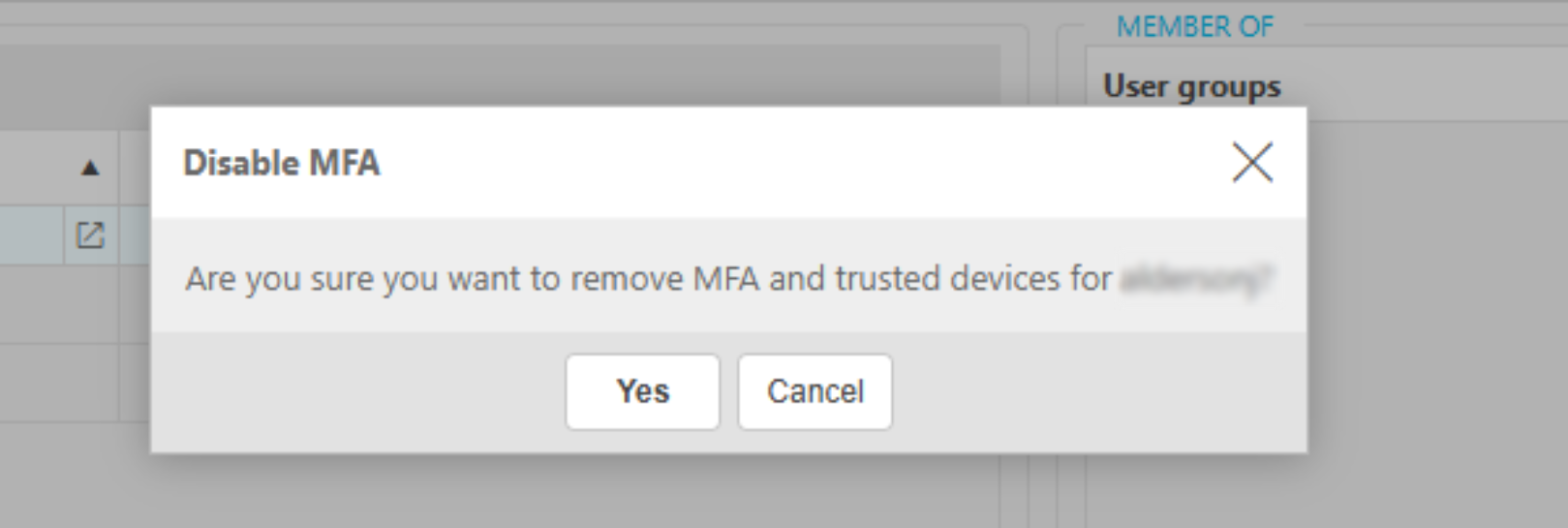
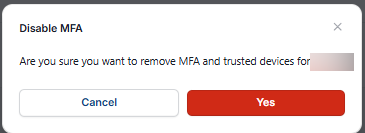
- Select 'Yes' to confirm
This removes the user's MFA setup along with any trusted or saved devices linked to the account.
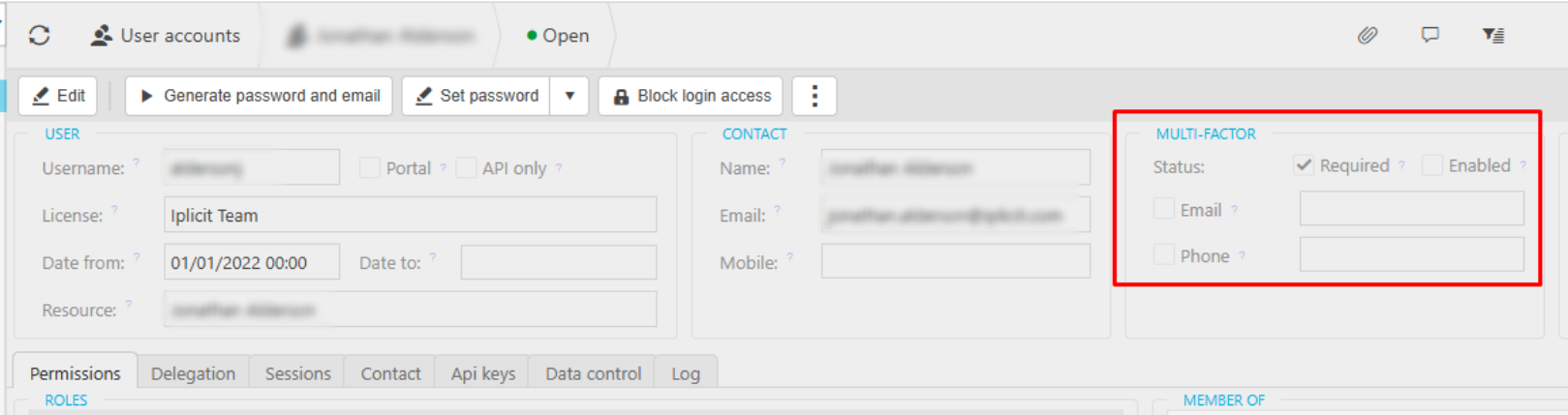
If 'Required' was ticked before removal, it stays ticked. This means the user is prompted to set up MFA again the next time they log in.
Enable MFA
Disable MFA
Remove MFA
Multi-factor authentication
Two-factor authentication
MFA setup
Turn off MFA
Require MFA