

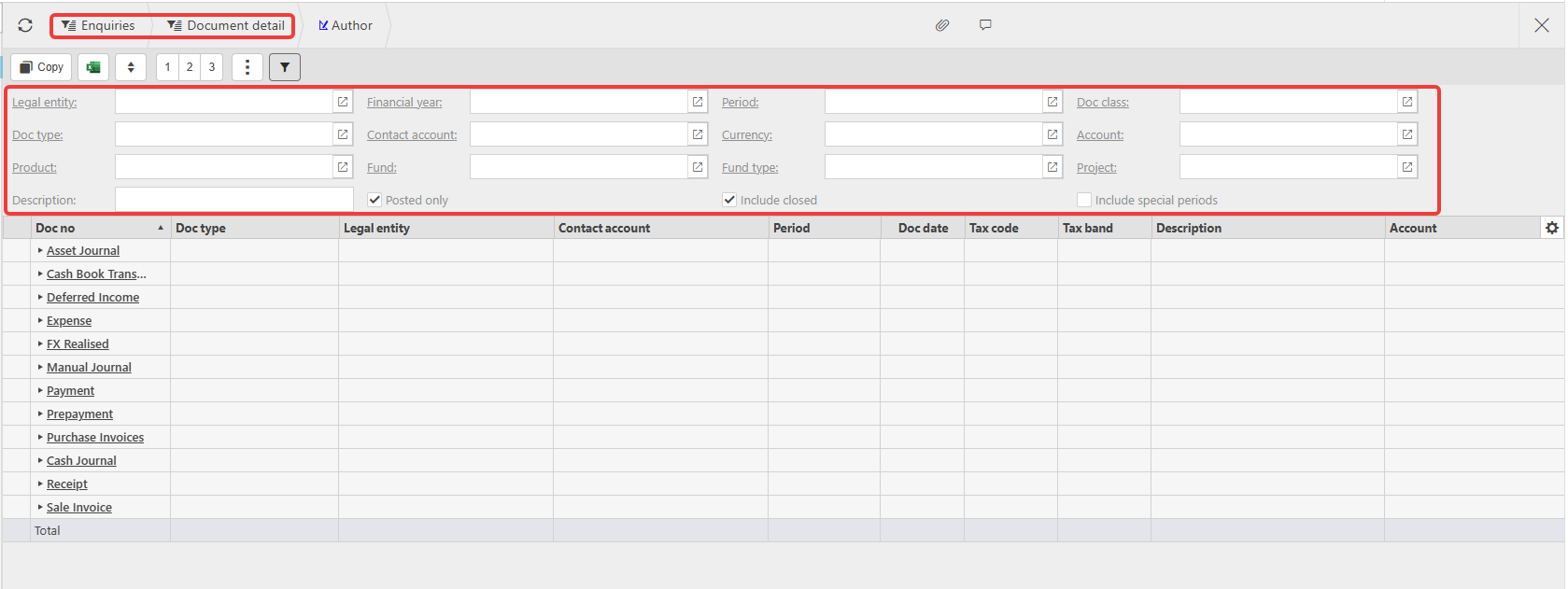
This article covers the document detail enquiry, found under Enquiries. Unlike the main document finder, which shows header-level information only, this enquiry lets you filter and view detail at the individual document line level – things like tax code, cost centre, or net amount on each line. There are two ways to filter: using the fields at the top of the screen, or using the sort, filter and group options on each column itself.
Filtering using the header fields
The document detail enquiry works across multiple document types in iplicit – sale invoices, purchase invoices, expenses, credit card postings, payments, journals, and more.
To filter:
- Open the document detail enquiry within the enquiries screen
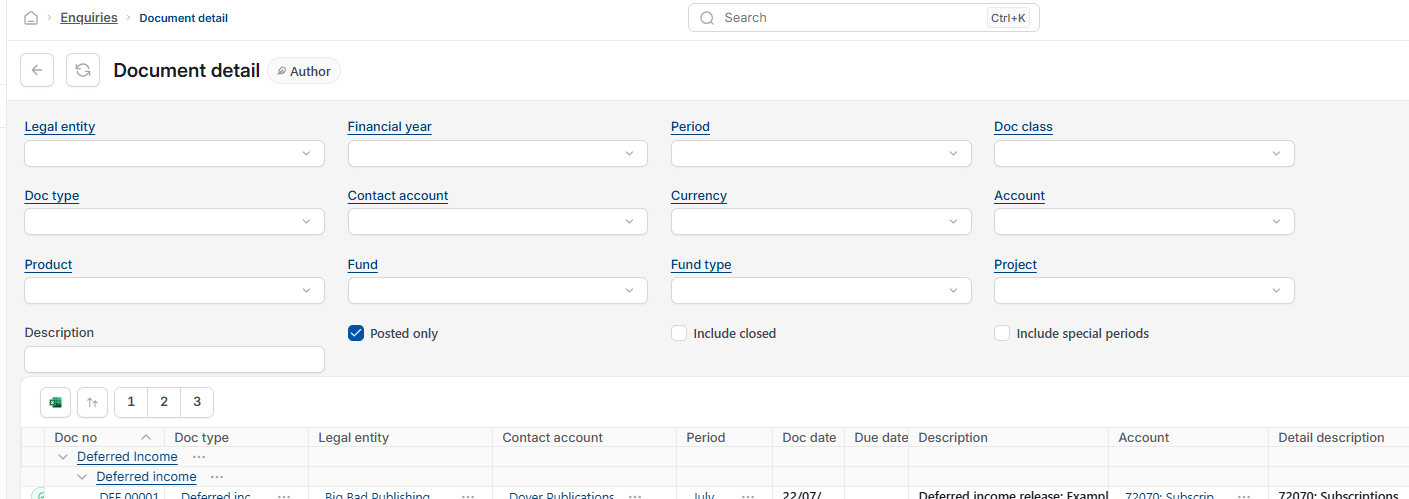
- Enter any known details in the filter fields at the top – for example legal entity, financial year, period, doc type, contact account, currency, account, product, fund, or project
- Leave any field blank to include all values for that field
- Tick 'Posted only' to see only posted documents, or untick it to include drafts
- Tick 'Include closed' to bring in document types that are now closed or documents that are abandoned, written off or reversed
- Tick 'Include special periods' to include special period entries, like B/F & Adjustments
- Select 'Filter' to run the search.
The results grid groups documents by doc class (for example Manual Journal, Payment, Sale Invoice) with a total row at the bottom. Select the arrow next to a doc class to expand it and see the individual documents inside.
Filtering by tax code or other values with no header field
The header fields at the top do not cover every field on a document – tax code is a common example. If a value is not available as a header filter, you can still filter for it using the column itself.
For example, to find all purchase ledger expenditure that uses a specific tax code:
- In the doc type field at the top, select the doc types you want, for example Purchase Invoices and Expenses
- Select 'Filter' to run the search
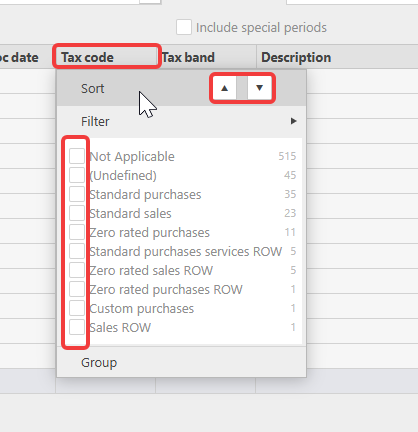
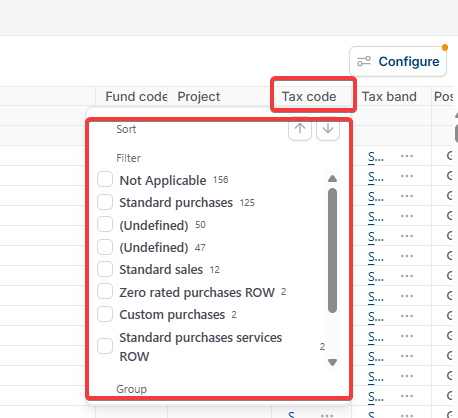
- In the results grid, select the small arrow on the 'Tax code' column header
- Choose 'Filter' from the menu
- Tick the tax code (or codes) you want, for example 'Standard purchases' or 'Zero rated purchases'
- The grid updates to show only lines matching that tax code.
The same column menu also has 'Sort', to order results by that column, and 'Group', to group results by its values. This works on any column in the grid, not only tax code – if a value isn't offered as a header filter, look for it as a column instead.
This enquiry is what customers sometimes describe as a detail report, a posting report, or a transaction report – for example an expenses posting report or a credit card transaction report. In every case, the answer is the same: filter and, if needed, export this enquiry, rather than looking for a separate named report.
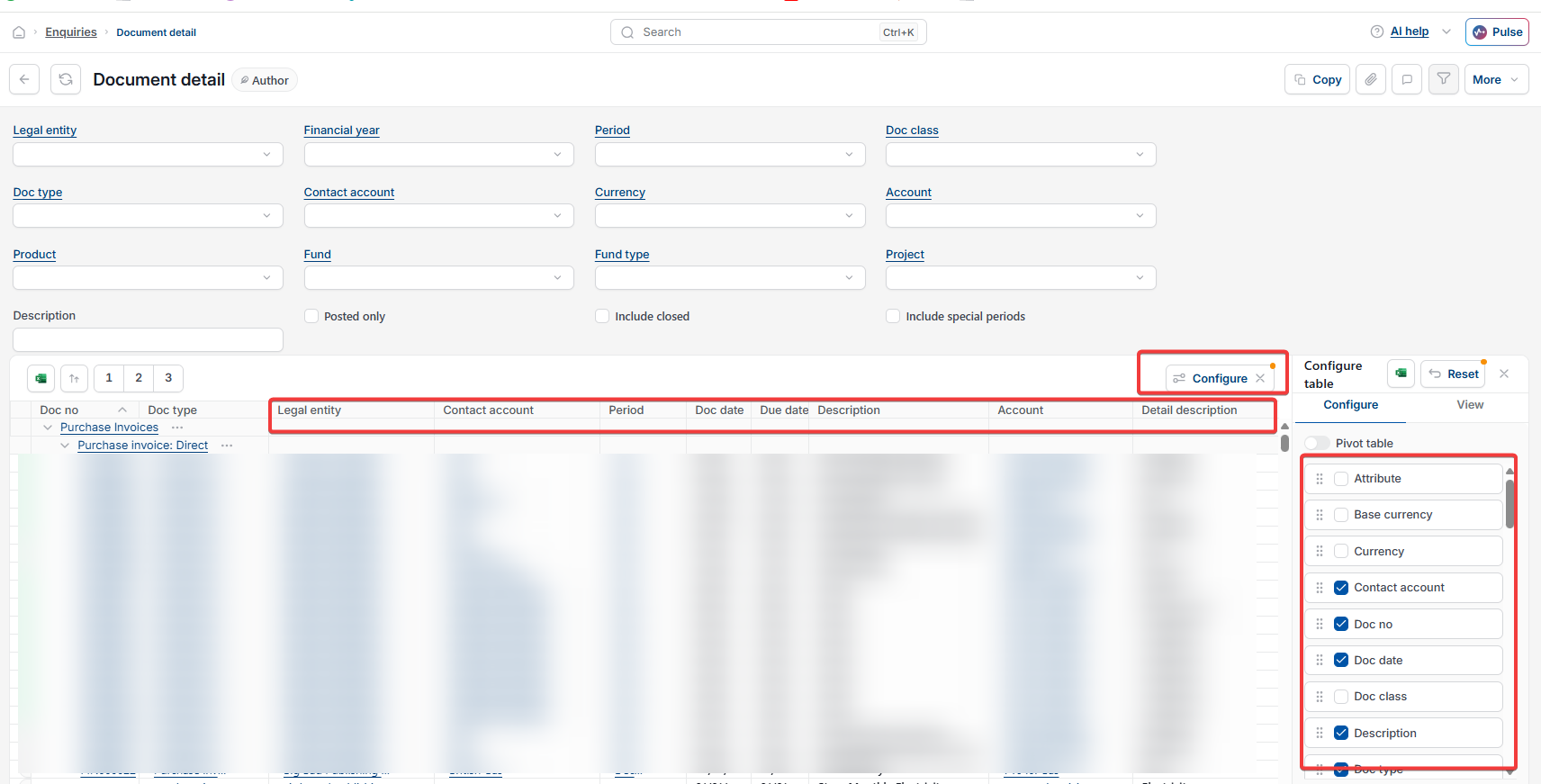
Customising the columns shown on the document detail enquiry
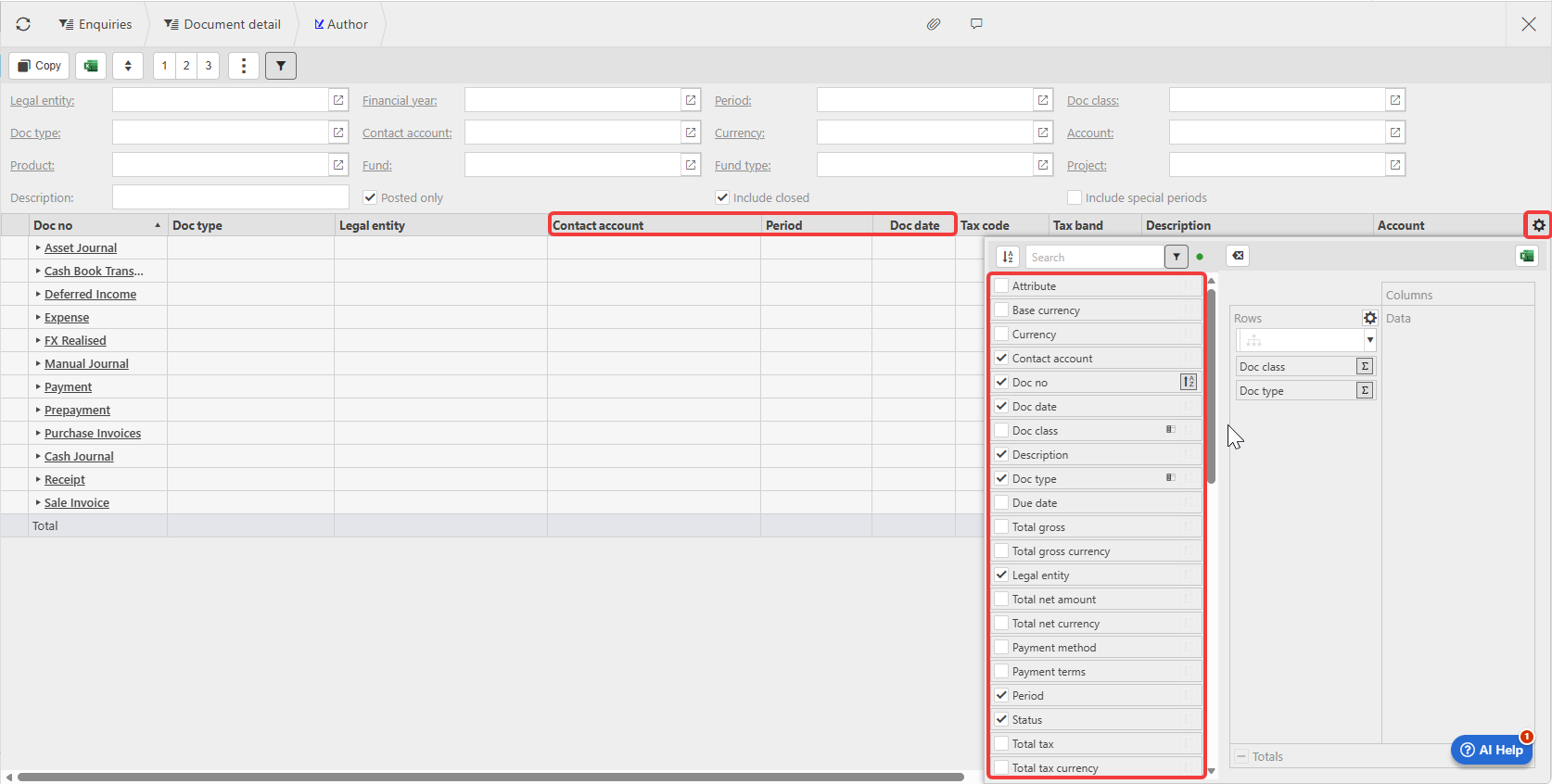
By default, the document detail enquiry shows a standard set of columns: doc no, doc type, legal entity, contact account, period, doc date, due date, description, and account. If you need to see more – or less – you can build your own view.
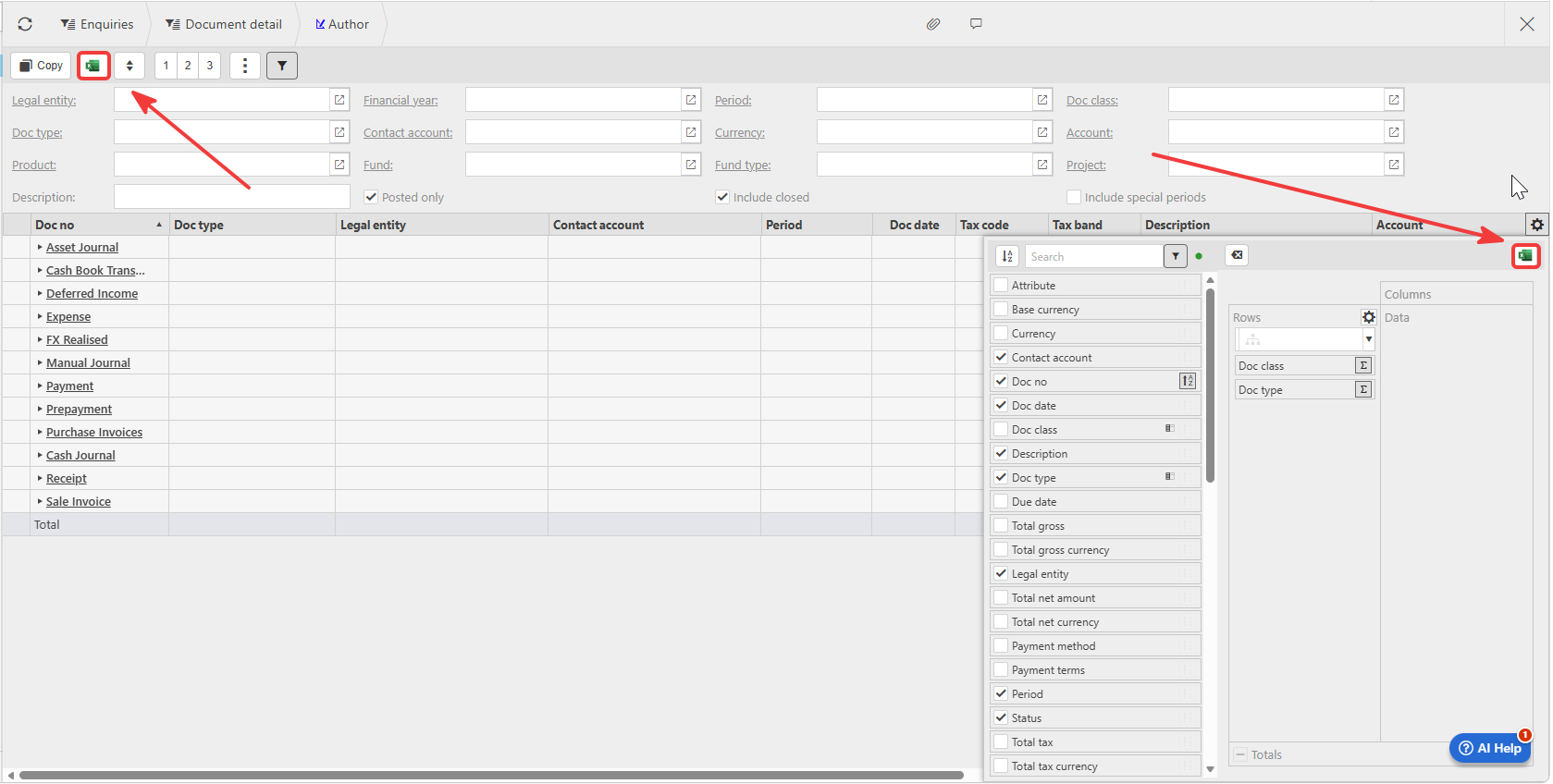
- Select the cog icon at the top right of the results grid
- A field list opens showing every available column, split roughly into document identifiers (doc no, doc date, doc class, status), financial values (gross, net, tax, posted amount), and dimensions (cost centre, department, project, fund)
- Tick the fields you want to appear as columns, and untick any you don't need
- Use the 'Rows' area at the top of the panel to control how results are grouped – by default this groups by doc class, then doc type
- Use the search box in the field list to find a specific field by name if the list is long.
Exporting the document detail enquiry to Excel
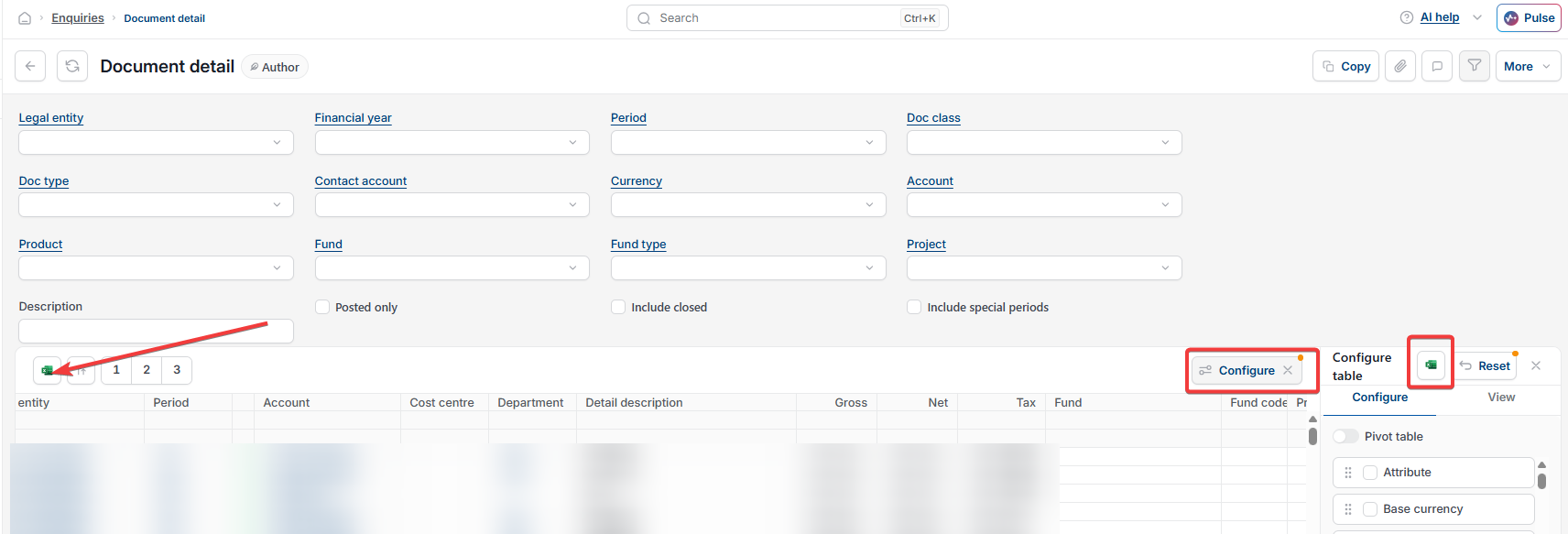
Once you have the filters and columns set the way you want, select the Excel icon in the toolbar to export the current results. The export includes exactly what is showing on screen – the same filters, the same columns, and the same grouping.
Document detail enquiry
Find document details
Document line detail
Doc detail search
Document detail search
Filter documents by legal entity
Export document detail to excel
Document finder vs document detail
Purchase ledger by tax code
Filter by tax code
Expenditure by vat code
Posting report
Transaction report