

This article covers adding Fund Type, or another existing attribute, to document lines. iplicit comes with a set of existing attributes, including Fund Type, that can be enabled on document lines. If Fund Type isn't appearing when entering a document, or its dropdown is empty when it does appear, it's because either the Fund Types and Funds haven't been set up yet, or the Chart of Account Rule on the account being used doesn't include the attribute. This applies across all document types, such as Sales Invoices, Purchase Invoices, Purchase Orders, Sales Orders, and Journals, because attribute visibility is driven by the Chart of Account, not the document itself.
Step one: set up your Fund Types
Fund Types are the top-level groupings your individual Funds sit under. For most organisations these are 'Restricted' and 'Unrestricted', but you can create whatever types suit your reporting needs.
See 'Fund Types' for the full steps to create fund types.
Step two: set up your Funds
Once your Fund Types exist, add the individual Funds that sit under each type.
See 'Funds' for the steps to create and import your funds list.
Step three: identify the Chart of Account Rule in use
Attribute visibility is controlled at the rule level, so the next step is to find the rule attached to the accounts you want to update:
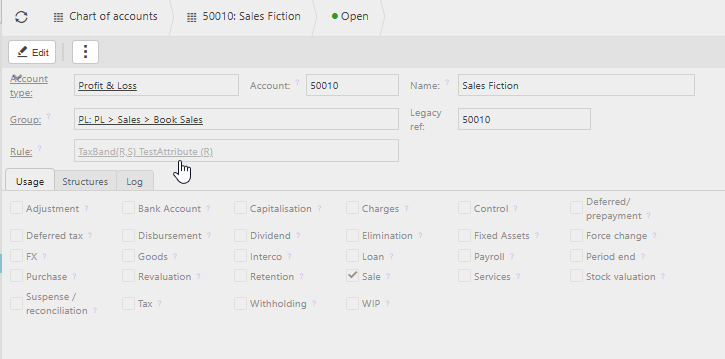
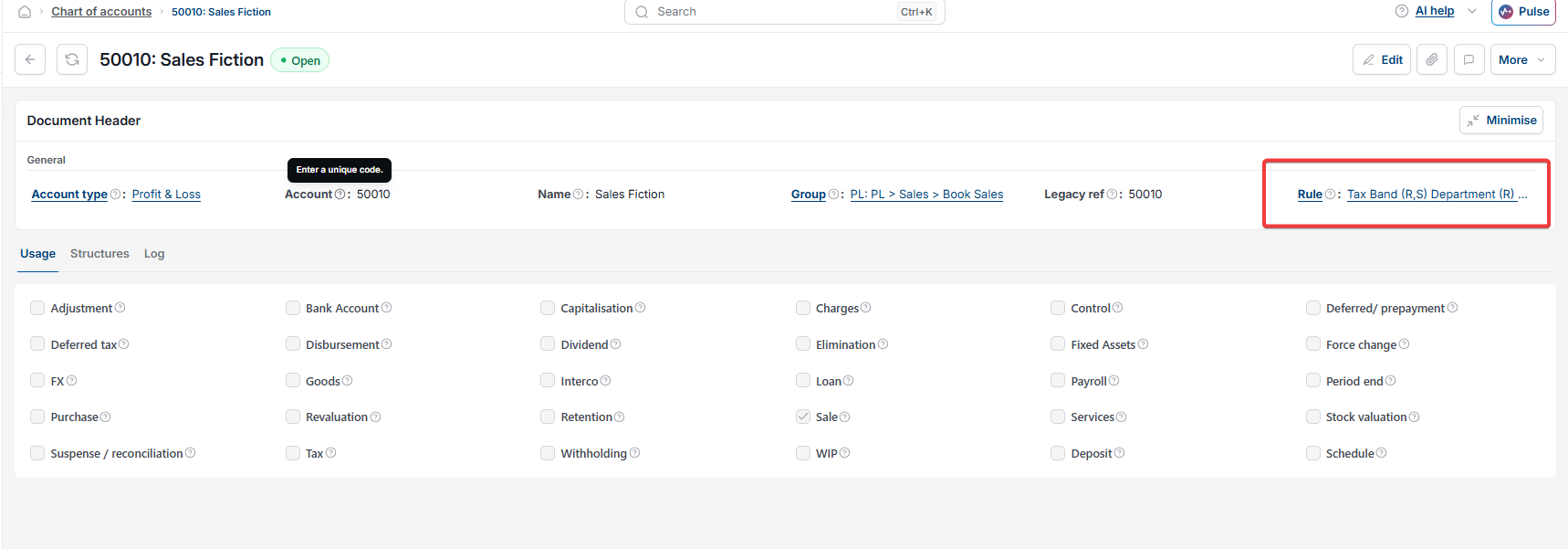
- Go to 'Chart of Accounts' and open one of the accounts where you want Fund, or the attribute you're adding, to appear
- Ctrl-click the 'Rule' field to open the Chart of Account Rule attached to it, for example 'TaxBand(R,S) TestAttribute (R)'.
If multiple accounts share the same rule, updating that rule once applies the change across all of them.
Step four: add the attribute to the Chart of Account Rule
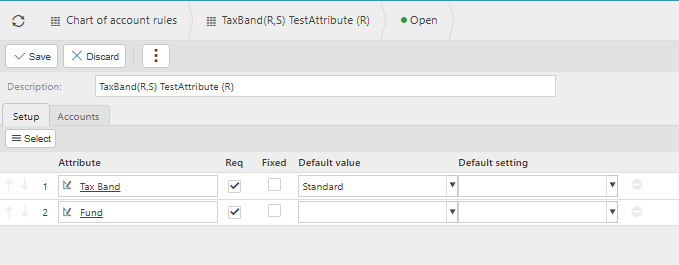
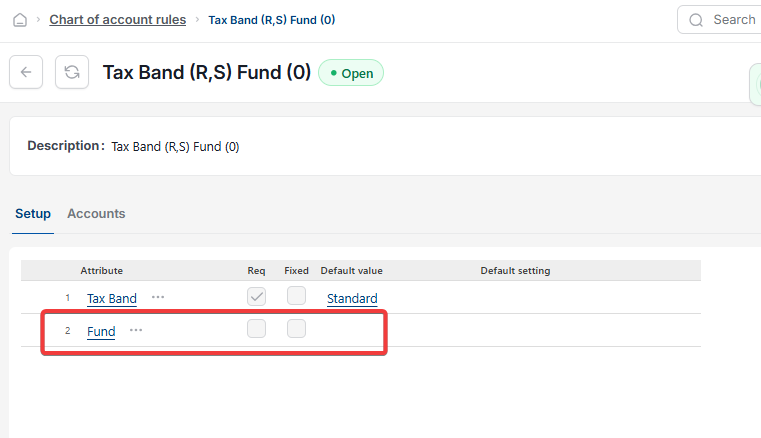
- Select 'Edit' on the rule
- Add the existing attribute you want available on document lines, for example 'Fund'
- Select 'Save'.
Step five: check the attribute appears on the document line
- Open a test document, for example a Sales Invoice or Purchase Order, and add a line
- Code the line to a Chart of Account that uses the updated rule
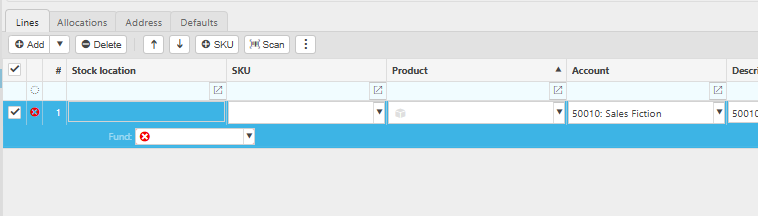
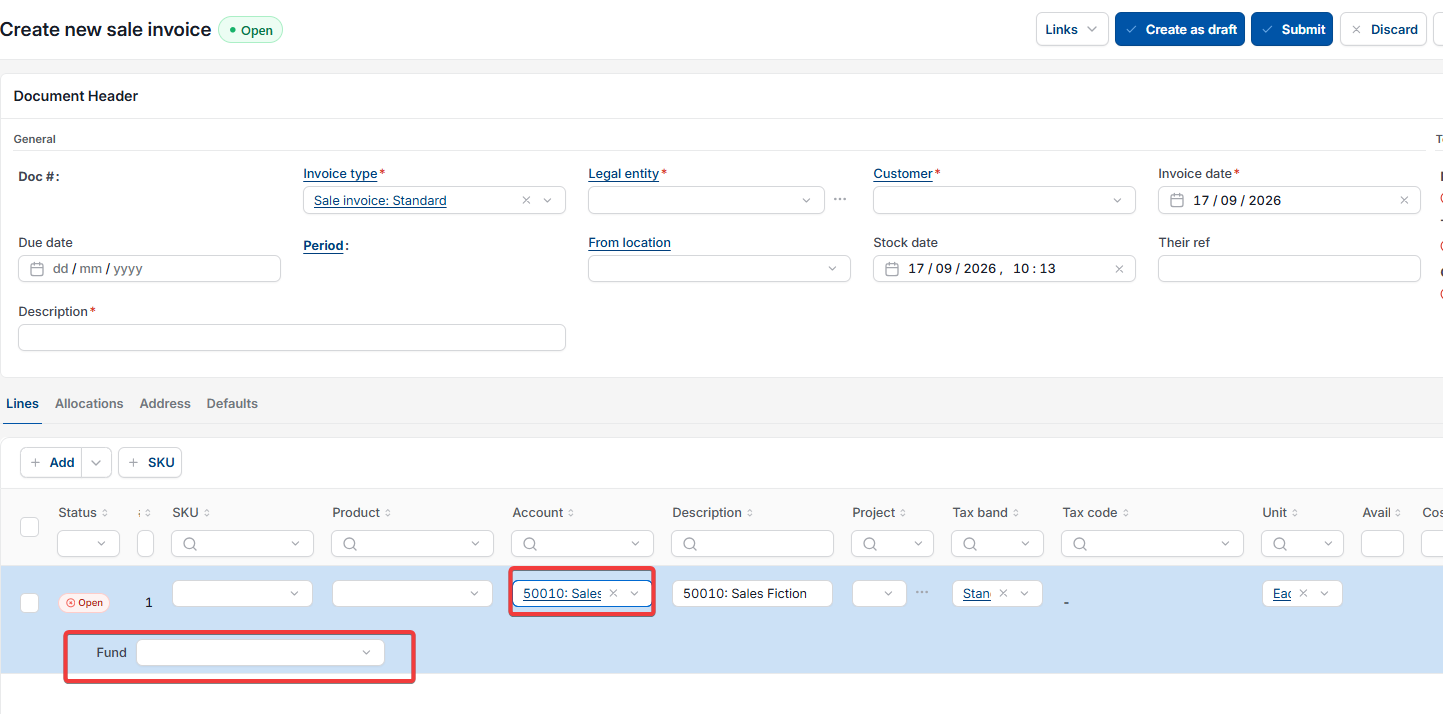
- Fund Type, or the attribute you added, should now be visible on the line, with the Funds you set up available to select. If nothing's been selected yet, the field shows as empty with a red warning icon until a Fund is chosen.
Things to know about adding attributes to document lines
- Fund Types and Funds only need setting up once. After that, any Chart of Account Rule you add Fund Type to displays the full list of Funds on document lines
- If Fund appears on the line but the dropdown is empty, it usually means Funds haven't been added under the Fund Types yet. Revisit step two
- This applies across Sales Invoices, Purchase Invoices, Purchase Orders, Sales Orders, Journals, and all other document types. Any document line coded to an account using the updated rule displays the attribute
- The same process applies if you want to add a Custom Posting Attribute you've created yourself. See 'How to create Custom Posting Attributes' for the steps to create one, then follow this article to make it appear on document lines.
Add funds to a document
Fund types on transactions
Fund on PO
Fund for PINs
Chart of account rule attribute
Empty fund dropdown